Edit your video
Add automatic or manual zooms
Let ShotGlass add the zooms
The video follows the step you are reading. Scroll to move through it.
Click Zoom: the magnifying glass, third in the left rail
Turn on Auto Zoom at the top of the panel. ShotGlass reads the clicks and typing in your recording and drops a zoom on the timeline at each one.
You should see: Purple zoom blocks appear on the Zoom row of the timeline.
Drag Granularity for more or fewer zooms
Drag left to merge nearby clicks into one long zoom. Drag right to give each click its own. Then click Redo and look at the timeline.
Set how far in and how fast
The video follows the step you are reading. Scroll to move through it.
Click Subtle, Standard, or Dramatic
This is how far each zoom pushes in. Click Custom for a slider if none of the three is right.
Click Custom if none of the three is right
A Zoom Scale slider appears under the row. 1.2x is barely a nudge; 3x fills the frame with a button.
Click Smooth or Instant
Smooth glides in and out. Instant cuts straight to the new framing. Custom lets you set the glide time yourself.
Choose what the zoom follows
- 1
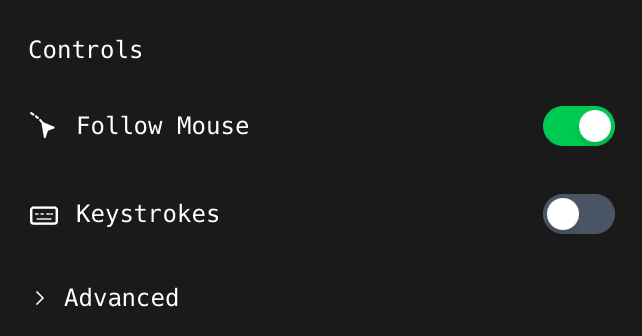
Turn Follow Mouse on to track the pointer
The camera drifts with your mouse inside the zoom instead of sitting still. Turn it off if the drifting is distracting.
- 2
Turn Keystrokes on to zoom on typing too
A Keystroke Size slider appears so you can set how big the on-screen keys are.
Change what counts as activity
- 1
Click Advanced at the bottom of the panel
A graph appears showing the recorded pointer against the camera that follows it, with the activity threshold as a dashed line. That is what the sliders below are changing.
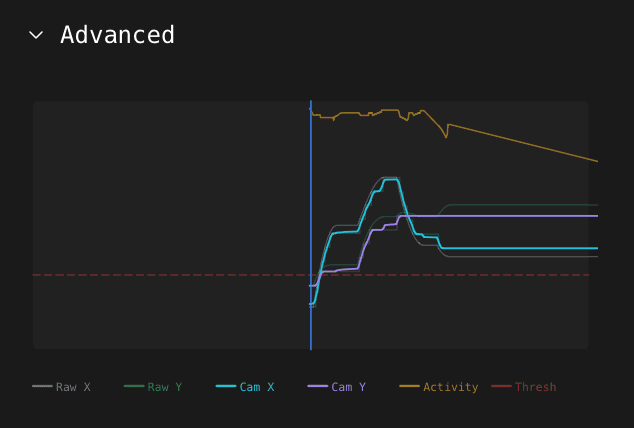
Activity is the yellow line. Anything above the dashed threshold becomes a zoom. - 2
Change one slider, then click Redo
Nothing on the timeline moves until you redo. Change one thing at a time or you will not know which slider did it.
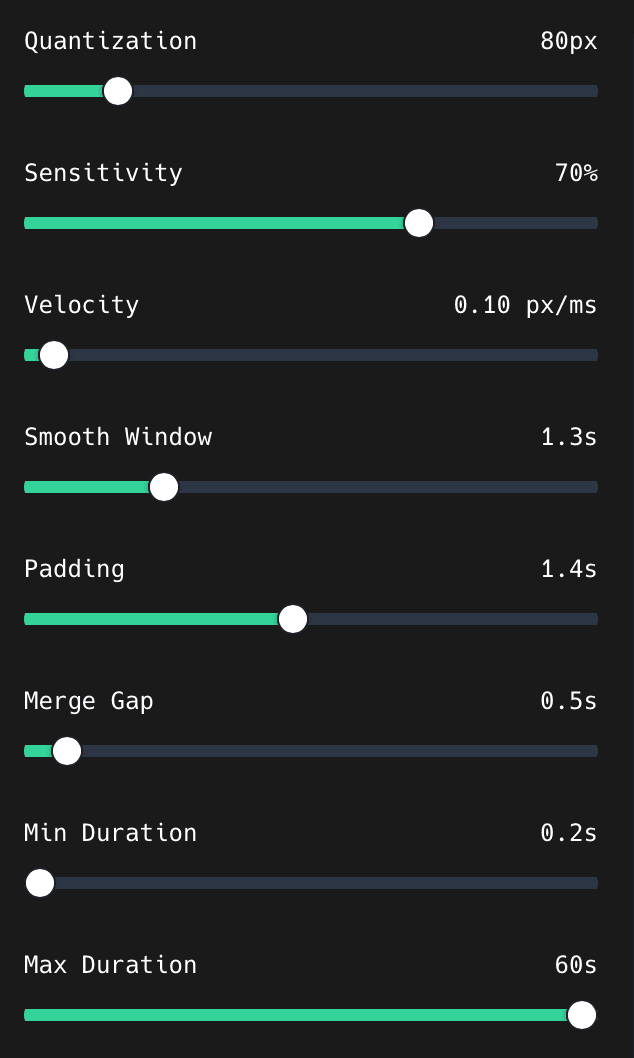
| Slider | Drag it up when |
|---|---|
| Quantization | Clicks that are close together should share one zoom target |
| Sensitivity / Velocity | Small mouse movements are being ignored |
| Smooth Window | The zoom target jitters between nearby clicks |
| Padding | Zooms start too late or end too early around the action |
| Merge Gap | Two zooms in a row should be one longer zoom |
| Minimum / Maximum Duration | Zooms are flashing past or overstaying |
Fix one zoom that landed wrong
- 1
Click the zoom block on the timeline
The panel switches to just that zoom. Drag its left and right edges to change when it starts and ends.
- 2
Drag the focus point on the preview
Move it onto whatever you want centred. Set its scale in the panel at the same time.
- 3
Set Camera Smoothness and Responsiveness
Only matters with Follow Mouse on. Smoothness softens the drift, Responsiveness decides how quickly the camera reacts.
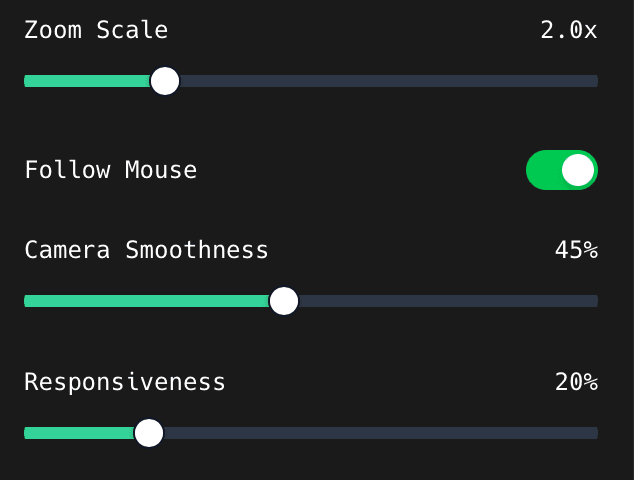
These replace the whole-project controls once a zoom is selected. - 4
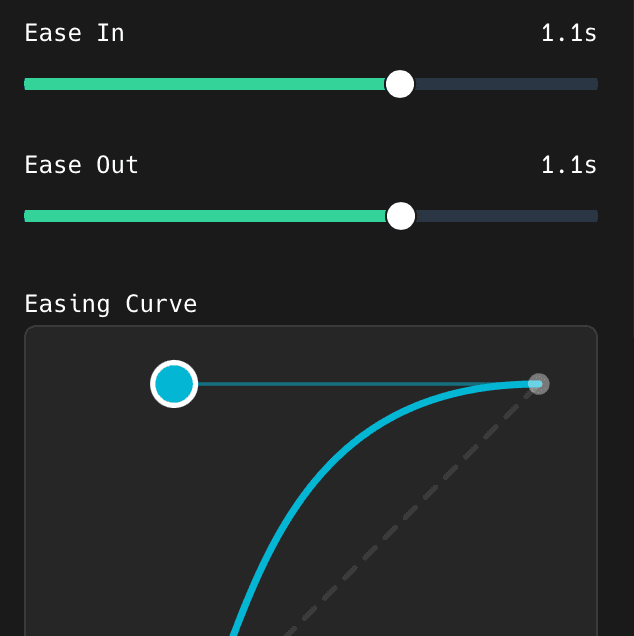
Adjust Ease In and Ease Out, or drag the curve
Ease In and Ease Out are how long the camera takes to arrive and leave. The curve underneath is the same thing as a bezier: drag either handle if the presets are not quite right.
- 5
Play from before the zoom to after it
Check the thing you are pointing at stays on screen, and that the next zoom does not start before this one finishes.
Add your own zoom
- 1
Pick a range on the timeline and add a Zoom
Use this when the automatic pass missed something you want emphasised.
- 2
Turn Follow Mouse off to hold one spot
Leave it on to move between several points instead. Click Other Focus Positions to see the list, then click Position 2 to edit the second one on its own.
Something missing or out of date?