Capture something
Record system audio, microphone, and camera
Turn on the audio you want
- 1
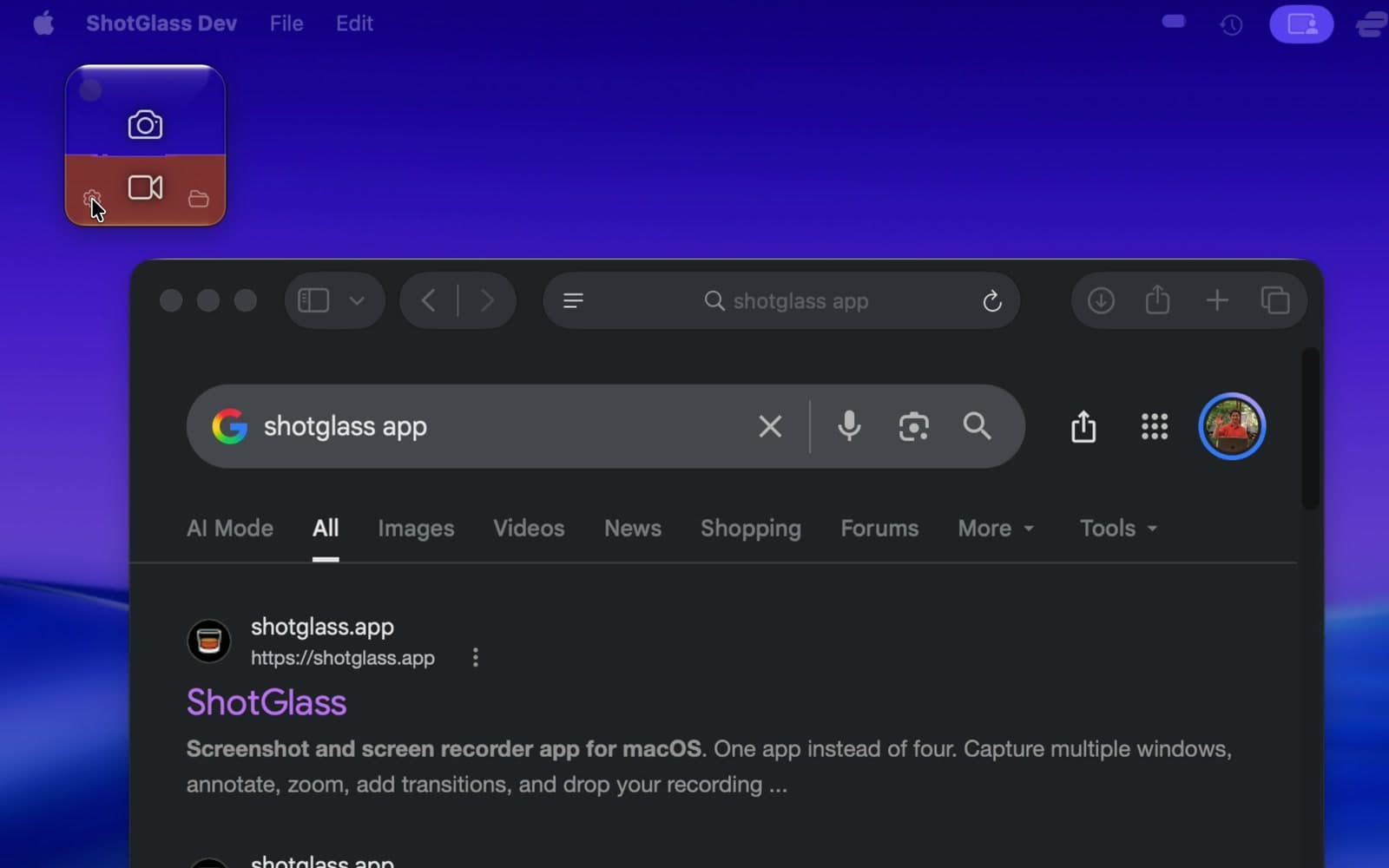
Click the gear to open Settings
Keep Settings clear of the widget.
- 2
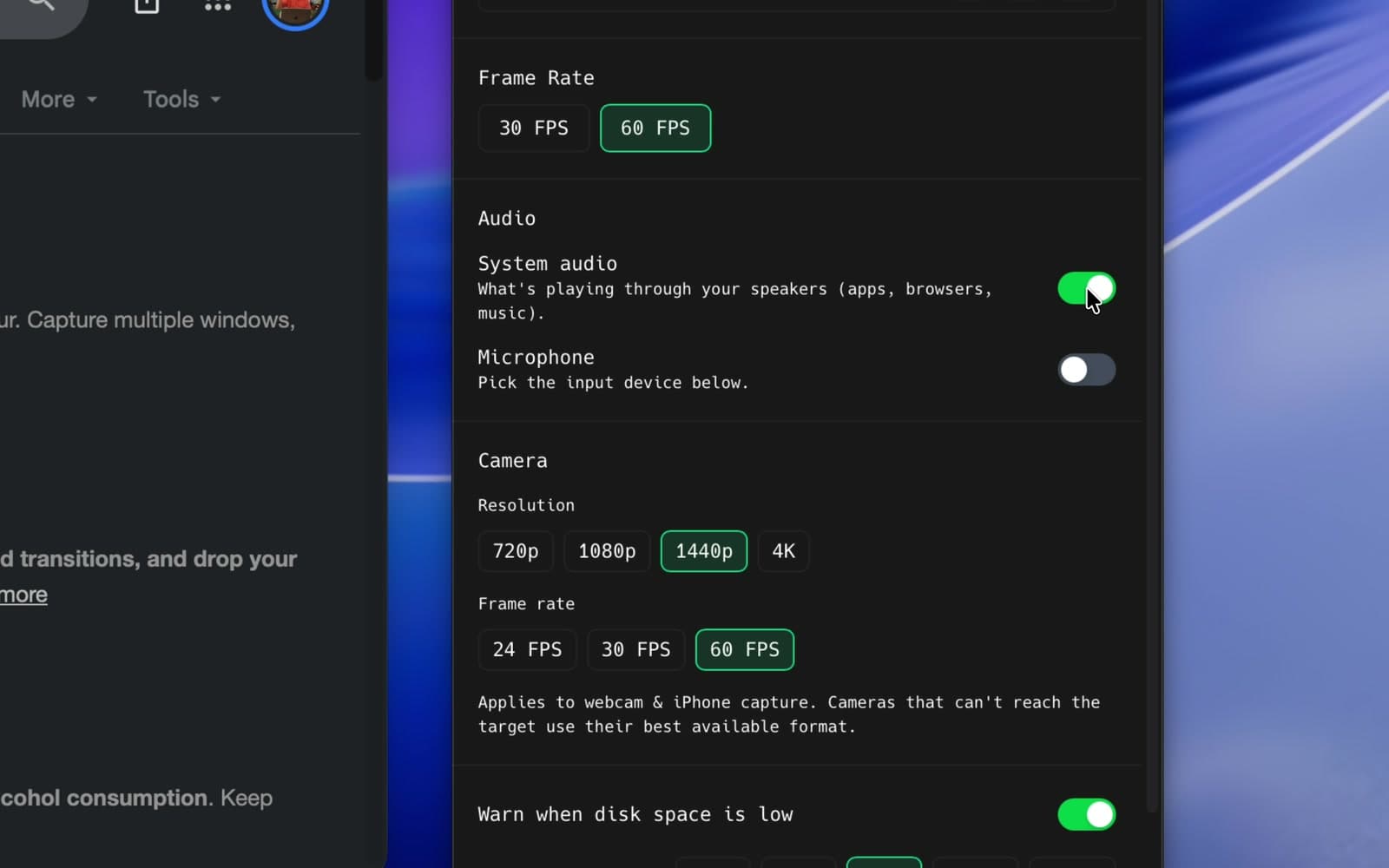
Switch on System Audio
Records sound from apps, such as a YouTube video.
- 3
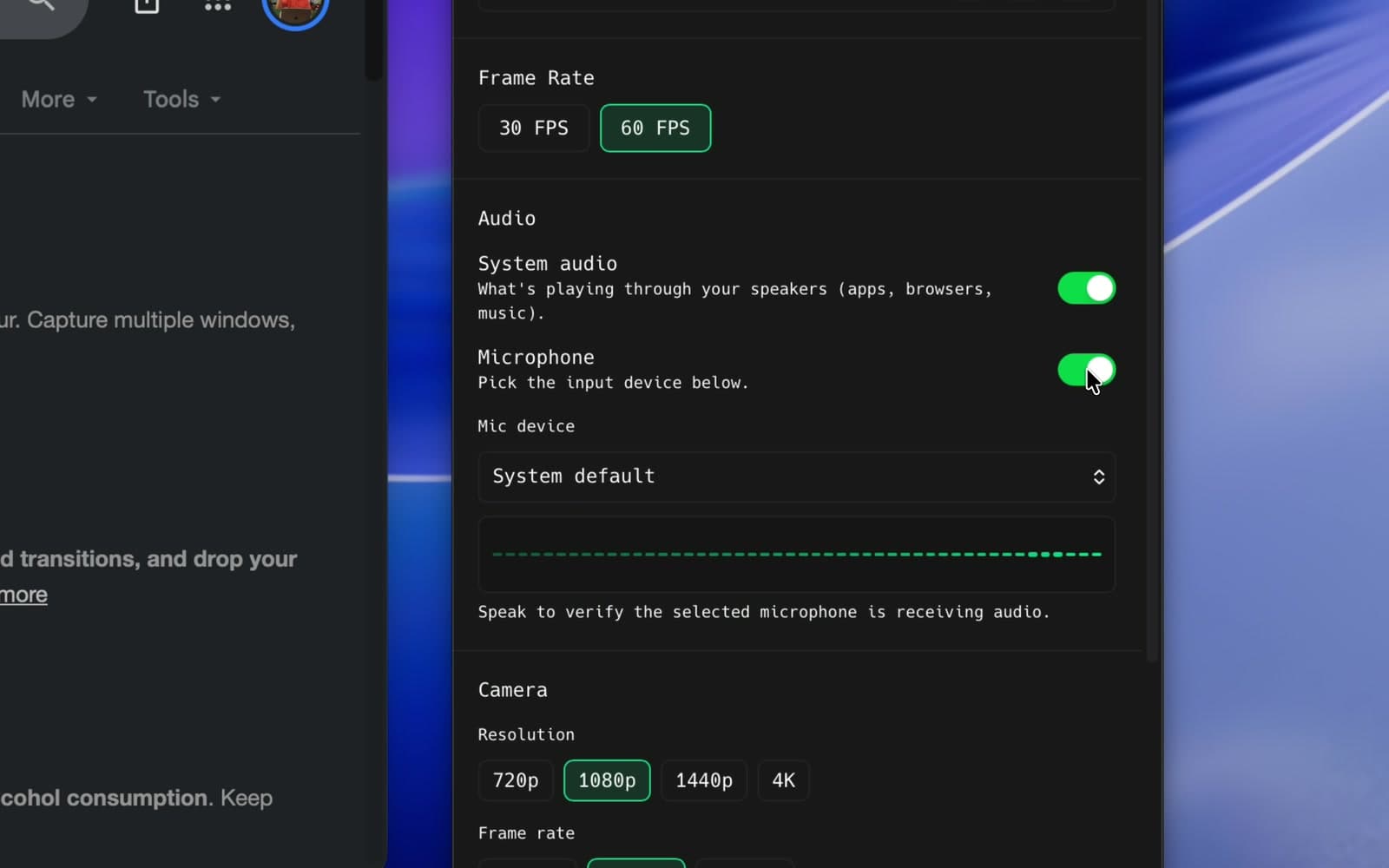
Switch on Microphone and choose your mic
A live waveform appears underneath it.
- 4
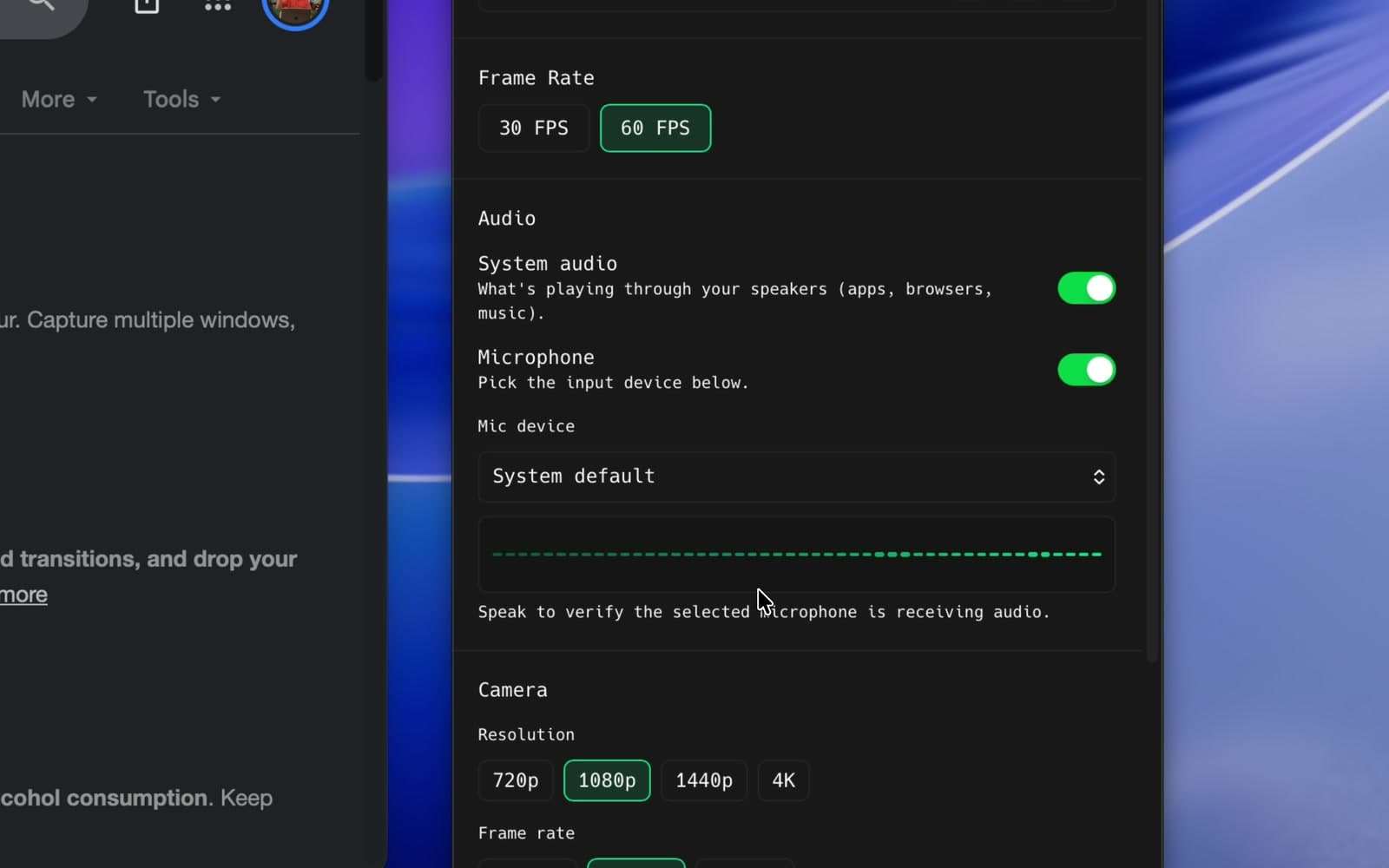
Speak and check the waveform
No movement? Try another microphone.
Turn on your camera
- 1
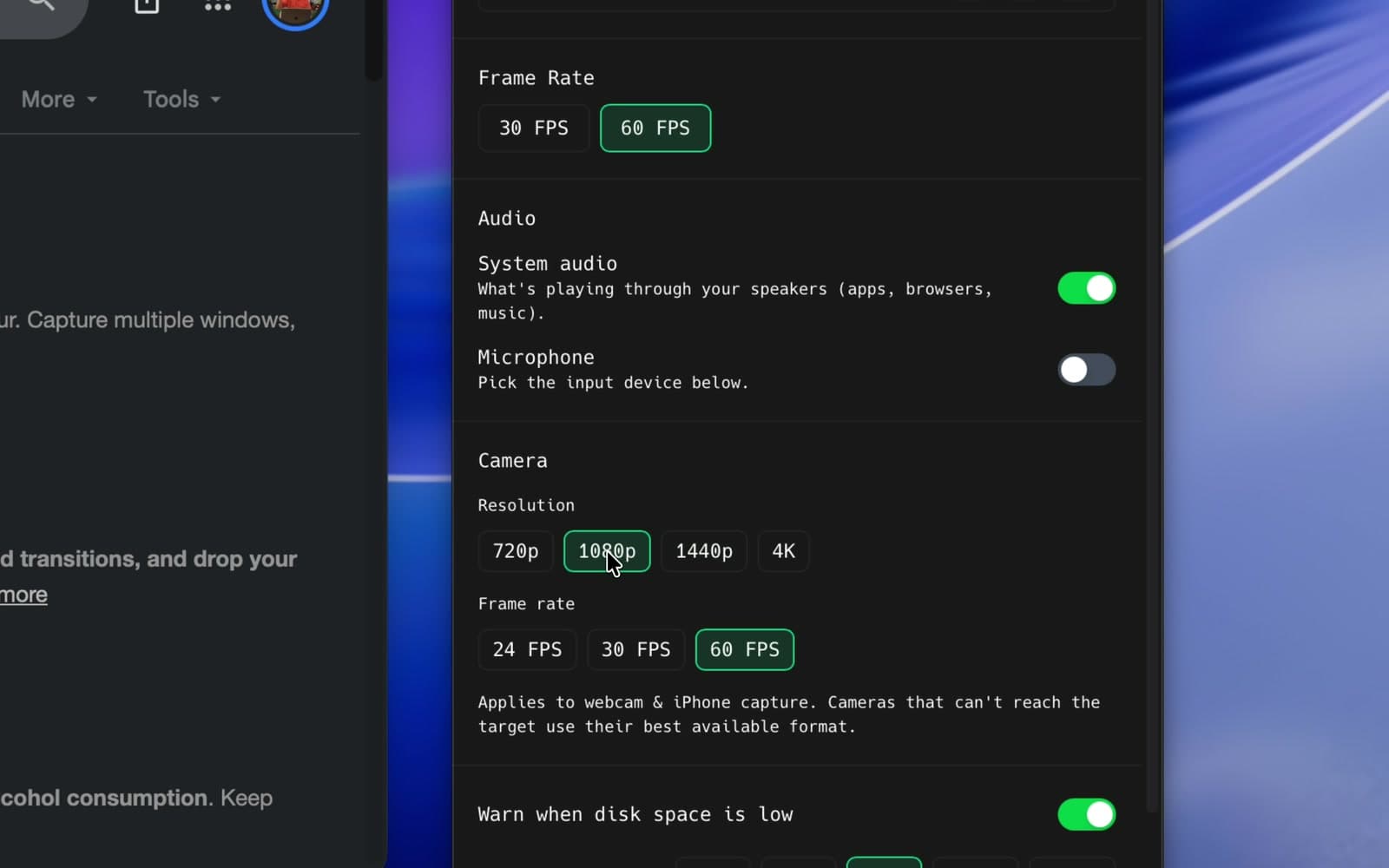
Pick a camera resolution and frame rate in Settings
These settings apply to webcam and iPhone capture. ShotGlass uses the closest supported format.
- 2
Choose your camera when selecting sources
Close Settings and click Video. Enable the camera you want in its floating camera control.
Do a ten-second test first
- 1
Record a short test
Play app audio, speak, and move in front of the camera.
- 2
Stop and check the timeline
Check the screen, audio, microphone, and camera tracks.
- 3
Play it back on headphones
Check the sound and picture stay in sync.
Something missing or out of date?