Manage projects
Find and organise projects
Find an old recording
- 1
Click the folder button at the bottom right of the ShotGlass widget
Recent Captures opens with everything you have made.

The folder is the small icon at the bottom right. - 2
Click All, Recordings, or Screenshots to narrow it down
Then click any project to open it in the editor.
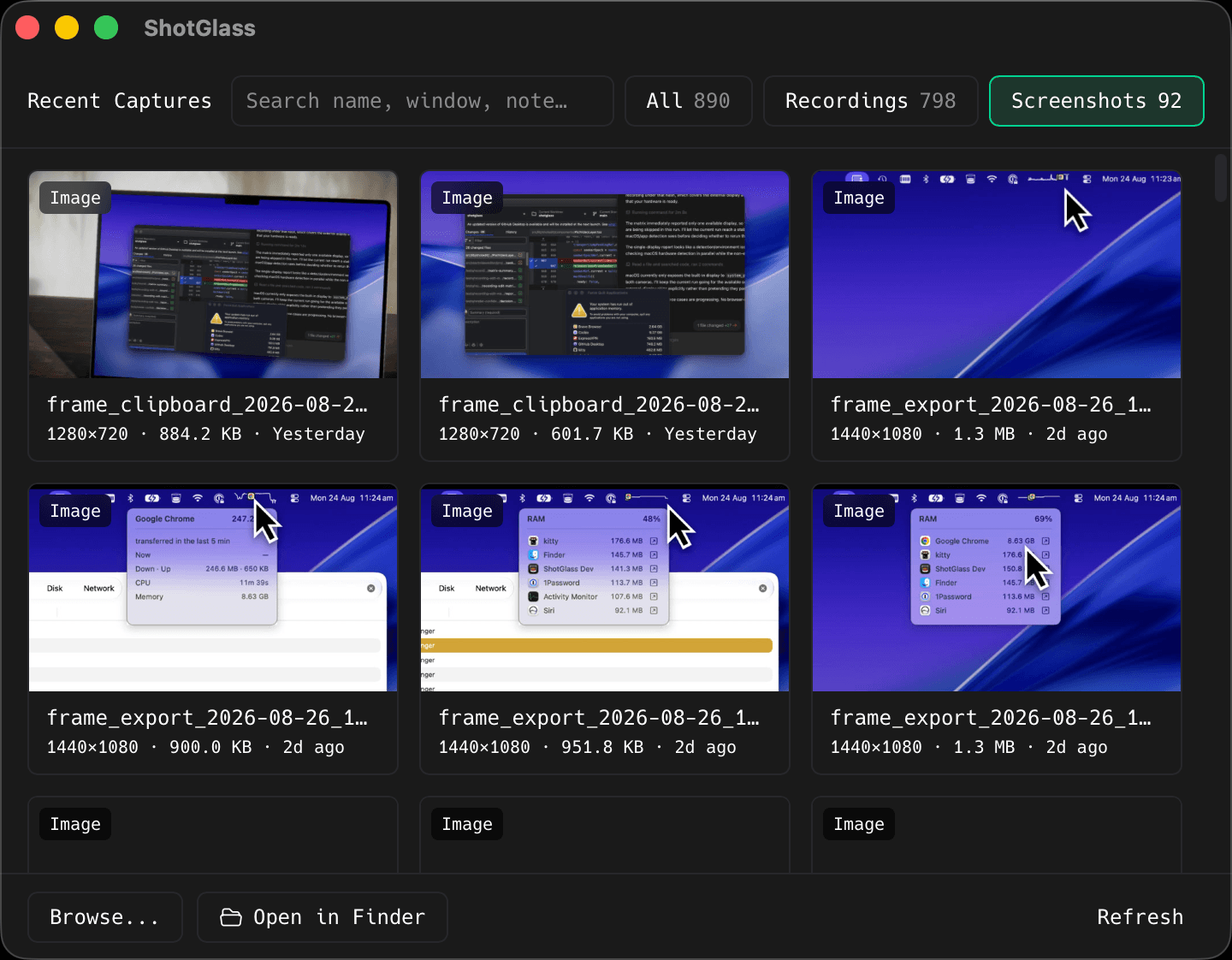
Everything you have captured, searchable and one click from the editor. - 3
Or type in the search box
It searches the name, the window you captured, and any note you added, so "Safari" finds every recording of a Safari window, whatever the file is called.
Star a project or give it a name
- 1
Hover a project card: buttons appear on it
Click the star to pin it to the Favourites section at the top.
- 2
Click the note button to label it
Type whatever helps you find it later. The note shows on the card and search looks inside it, which is what makes it worth doing.
Find the actual files on disk
- 1
Click Open in Finder, then Recordings or Screenshots
Finder opens the folder ShotGlass saves into.
- 2
Click Refresh if you moved files around outside ShotGlass
Recent Captures re-reads the folders.
Delete a project
- 1
Hover the card, click the bin, and confirm
It goes to the macOS Trash, so you can still get it back until you empty it.
Something missing or out of date?