Edit your video
Edit the camera overlay
Move and reshape the camera
- 1
Click the camera clip on the timeline
Or click Camera in the left rail. The camera controls open on the left.
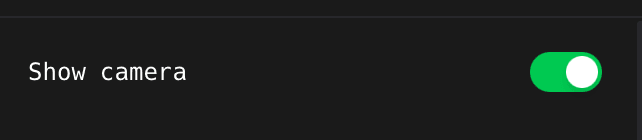
Show camera drops the camera from the whole project without deleting the clip. - 2
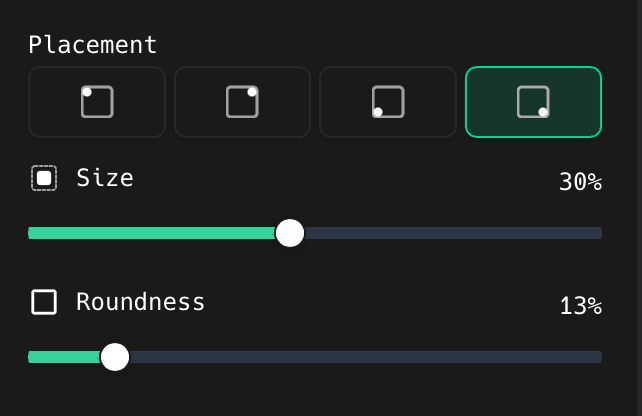
Click one of the four Placement squares
They put the camera in a corner. Then drag Size for how big it is, and Roundness: all the way up gives you the round bubble.
- 3
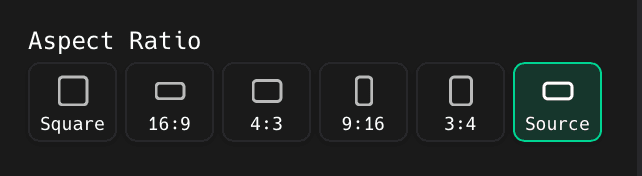
Click an Aspect Ratio if you do not want the camera's own shape
Source keeps whatever your webcam recorded. Square and 9:16 are the ones to reach for when the bubble looks stretched.
- 4
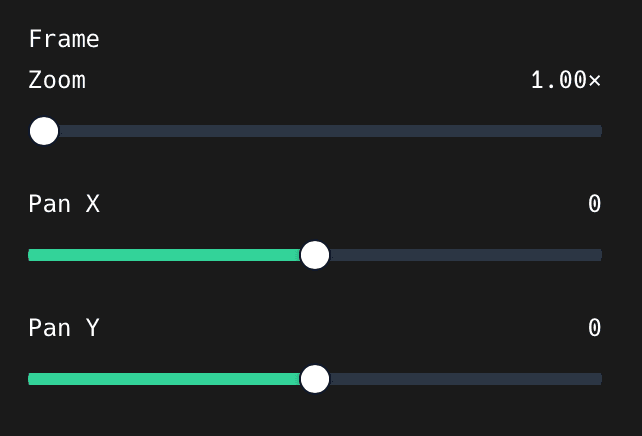
Use Zoom, Pan X, and Pan Y under Frame to centre your face
These crop inside the camera picture: they do not move the bubble.
Fix lip sync and hide the camera in places
- 1
Click Re-sync with audio if your lips are out of time
One button under Sync. ShotGlass lines the camera back up with the microphone track for you.
- 2
Add a hidden range to drop the camera for a while
Use it over the parts where only the screen matters. Set fade in and fade out so it does not pop on and off.
Style the camera
- 1
Turn on Mirror if text behind you reads backwards
Under Appearance. Webcams flip the image by default, which looks natural for your face and wrong for anything with writing on it.
- 2
Set shadow and background blur below it
Blur softens whatever is behind you without a green screen.
- 3
Turn on Follow screen zoom to move it with your zooms
Leave it off to pin the camera to the same corner of the exported frame the whole time.
Place the camera in a 3D scene
- 1
Click Overlay, On screen, or Hide
Overlay floats the camera over the 3D scene. On screen puts it inside the laptop display along with your recording. Hide drops it for the length of the 3D scene.
Something missing or out of date?