Edit your video
Add arrows, text, and shapes
Draw an arrow or a box
- 1
Drag the playhead to the moment you want to point at
Whatever you draw starts here.
- 2
Click Annotate in the left rail and pick a tool
Arrow, Line, Text, Rectangle, Filled Rect, Circle, Filled Circle, or Cursor.
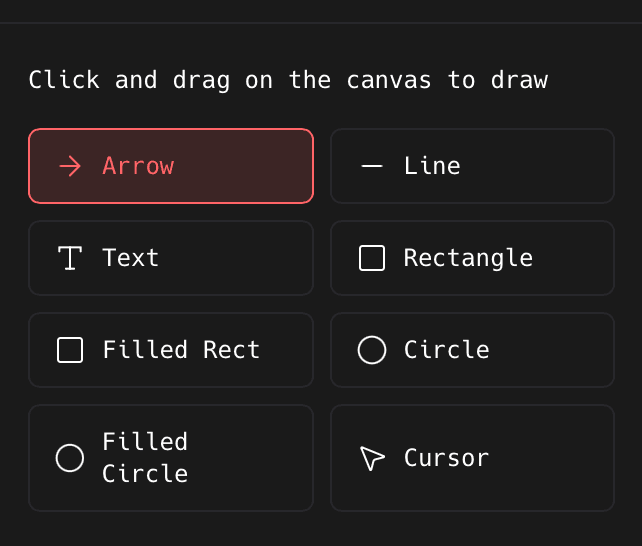
The selected tool is outlined. Everything below the grid sets the defaults for the next shape you draw. - 3
Drag across the canvas to draw it
For Text, draw the box first and then type into it.
You should see: The annotation appears on the canvas and as a clip on the timeline, three seconds long.
Move or resize one you already drew
- 1
Click its clip on the timeline
That selects the same annotation on the canvas and opens its controls.
- 2
Drag the middle of it to move it
Drag the handle at its bottom-right corner to resize.
Change its colour and thickness
- 1
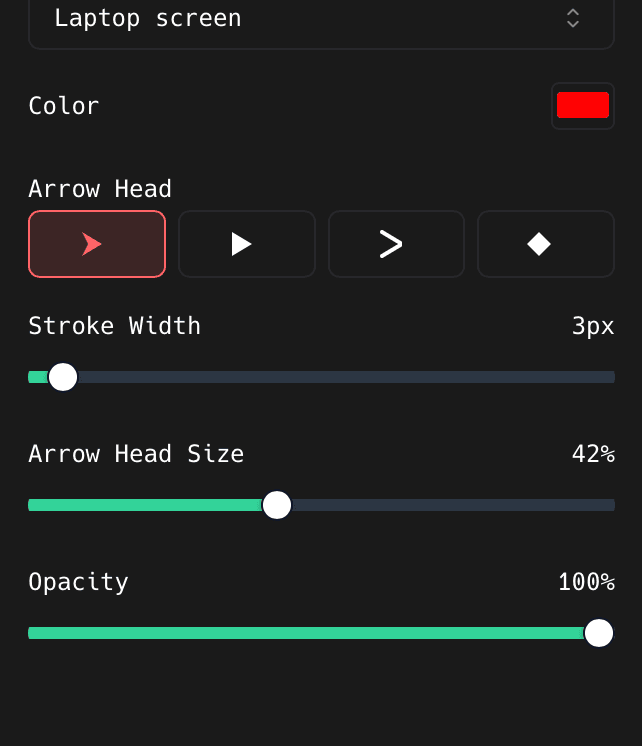
For arrows and lines: set colour, stroke width, and arrow head
Four arrow head shapes to click through. Stroke Width is in pixels: 3px is thin over a busy screenshot, so push it up if the arrow disappears.
- 2
For rectangles and circles: set colour, stroke width, and opacity
The Filled versions get a fill colour too.
- 3
For text: start from Bold Subtitle or Editorial Card
Then edit the words in Content and set the font, size, and alignment. Outline further down is what keeps white text readable over a light screenshot.
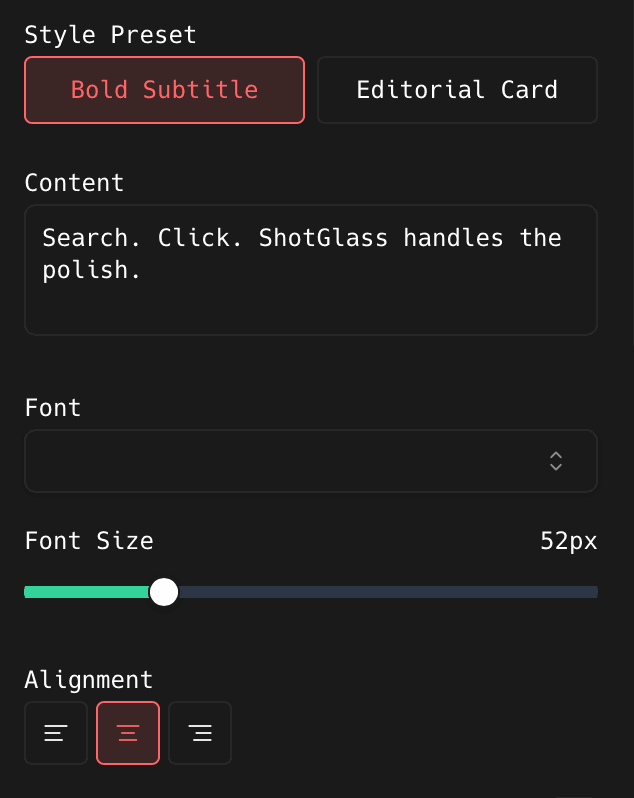
These replace the shape controls when the selected annotation is text.
Set when it shows up
- 1
Drag the edges of its timeline clip
Start it when the thing you are pointing at appears. End it before the next step so it does not linger.
- 2
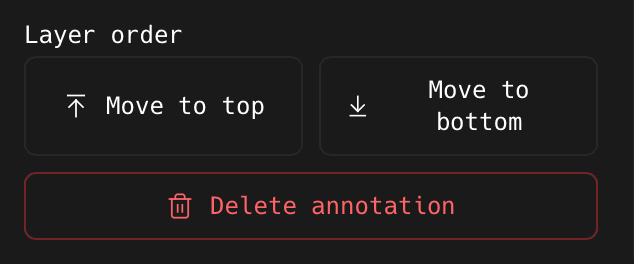
Click Move to top if something is covering it
Move to bottom pushes it behind the other layers. Both sit at the very bottom of the panel, next to Delete annotation.
Make it fade or slide in
- 1
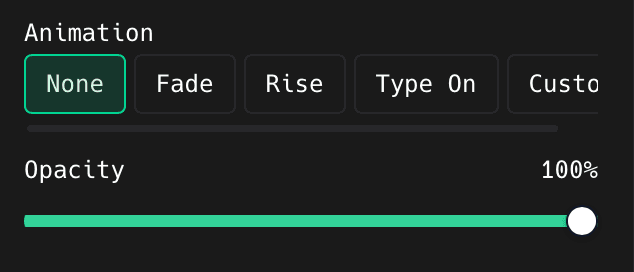
Click None, Fade, Rise, or Type On
Near the bottom of the panel, under Animation. Play the section after each one: you cannot judge motion from a still frame.
- 2
Click Custom to control the timing yourself
Set an entrance style, an exit style, how long ShotGlass waits before starting, and how long each takes.
- 3
For text, set the reveal unit and stagger
Reveal by letter or by word, with a delay between each. Direction sets which end it starts from.
Put an annotation inside a 3D scene
- 1
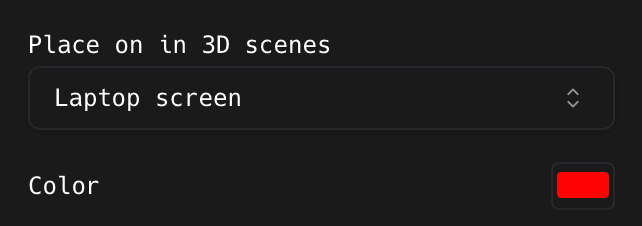
Open the Place on in 3D scenes menu and pick one
Whole video floats the annotation over the whole shot. Laptop screen projects it onto the laptop display with your recording, so it tilts and moves with the scene.
Delete one
- 1
Select it, then click Delete annotation
It disappears from both the canvas and the timeline. Other annotations are untouched.
Something missing or out of date?