Edit your video
Add text and captions
Put a title on screen
- 1
Drag the playhead to where the title should start
The text is added at the playhead.
- 2
Click Text in the left rail, then click a template
Or drag a template straight onto the timeline row and time you want.
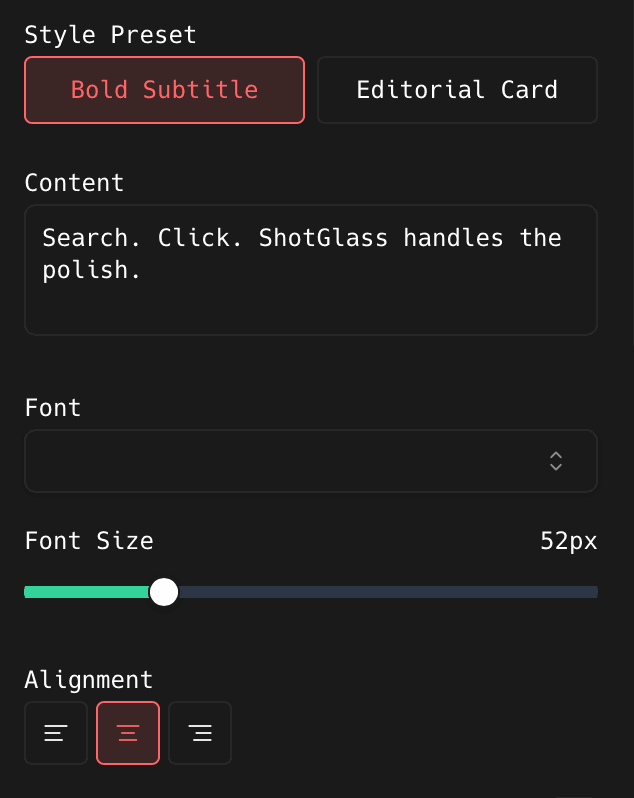
You should see: A three-second text clip is added and selected.
- 3
Type your words over the placeholder
Then set the font, weight, size, alignment, colour, and where it sits on the canvas.
- 4
Drag the clip's edges to change how long it stays up
Drag the middle of the clip to move it somewhere else.
Load subtitles you already have
- 1
Click Text, then Captions, then Upload SRT File
Pick a standard .srt file. ShotGlass uses the text and the timecodes already inside it, so the captions land in the right places straight away.
Turn a written script into captions
- 1
Paste your script under Generate from Text and click Generate Captions
ShotGlass splits it into caption blocks and spreads them across the timeline.
- 2
Play the video and drag each caption into place
The generated timing is a rough starting point, not a match to your voice. You have to line them up yourself.
Fix a caption
- 1
Click the caption clip on the timeline
Or open Text › Captions. Edit the words and the start and end time for any block.
- 2
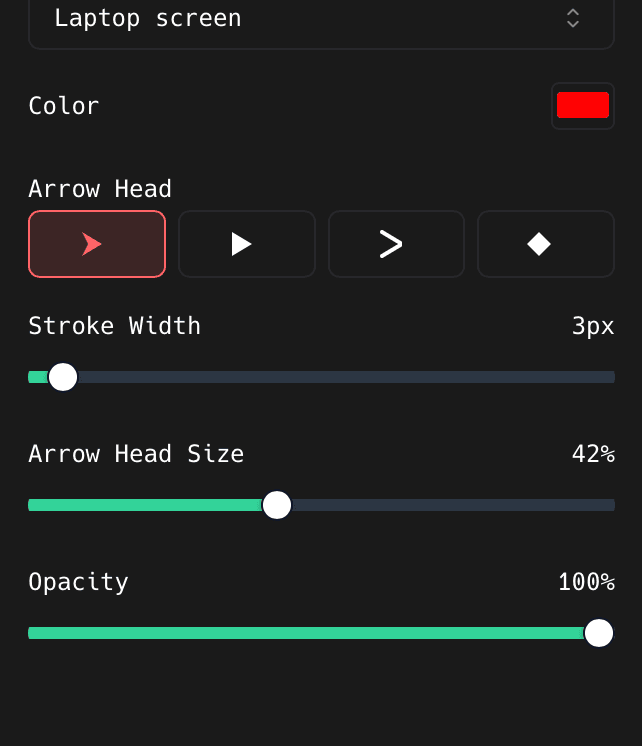
Use the caption style controls to change how they look
Pick a template and adjust it from there.
- 3
Play the whole thing from the start
Watch for wrong names, missing punctuation, awkward line breaks, and captions that appear a beat late.
Something missing or out of date?