Get Started
Troubleshoot ShotGlass
ShotGlass says a permission is missing
- 1
Open ShotGlass Settings and re-check the permission it named
The Agent permissions panel reports Accessibility and Input Monitoring separately and explains what each one enables.
- 2
Quit ShotGlass properly and reopen it
Closing the window does not count. Quit it.
An AI agent filmed a take, but nothing responds or the clicks are missing
Letting an agent drive a real demo needs two macOS permissions beyond Screen Recording, and they fail in different, confusing ways. Both live in System Settings › Privacy & Security.
- 1
Add ShotGlass to Accessibility, and to Input Monitoring
Two separate panes in the same list. Screen Recording being on already tells you nothing about either.
- 2
Expect ShotGlass to restart when you grant Input Monitoring
macOS restarts the app for that one. That is normal, but it means granting it in the middle of filming loses the take, so do it before you start.
- 3
Ask the agent to check before it films, not after
ShotGlass reports whether clicks can be captured before a recording starts, so a well-behaved agent will tell you what is missing rather than handing you unusable footage.
| What you see | What is missing |
|---|---|
| The agent says it cannot post input, or the cursor never moves | Accessibility. It is what lets ShotGlass move the pointer and press keys at all |
| The cursor moves and things respond, but there are no click effects and no automatic zoom | Input Monitoring. The take was filmed, but the clicks were never recorded as clicks, so there is nothing for zoom to key off |
| The cursor glides around and the app ignores it completely | Neither. The agent authored a cursor without driving the app: ask it to film the take with real input instead |
Clicks stop responding after a take was cut short
A driven take presses and releases the mouse for real. ShotGlass releases anything it pressed when a take ends, is cancelled, or the app quits. If ShotGlass was force-quit or crashed in the middle of a press, macOS can be left thinking the button is still held, and nothing on screen responds to clicks even though the cursor moves.
- 1
Restart your Mac
That clears the held button. Nothing else needs changing, and it will not happen again on a take that finishes or is cancelled normally.
The recording is blank or shows the wrong thing
- 1
Do a five-second test before re-recording the whole thing
Hover the window until its whole boundary is outlined, click Record, not +, and move something obviously, then stop and look at the result.
- 2
If a menu or dialog was missing, it opened outside your source
macOS often draws those as separate windows. Either add that window with +, or record the full display instead.
Audio or camera is missing, doubled, or out of sync
- 1
Do a ten-second test with everything enabled
Play app sound, say one sentence, move in front of the camera. Stop and check every track you expected is actually on the timeline.
- 2
Hearing an echo? Put headphones on
Your speakers are feeding the app audio back into the microphone. There is no fix for that in the edit.
- 3
Lips out of time? Click the camera clip and drag its sync control
Nudge it until the mouth matches the voice.
- 4
A track never got captured? Re-record
If the device was off during the take, there is nothing to recover.
Recording stopped, or an edit vanished
- 1
Check your free disk space
A full disk stops a recording mid-take. Keep the low-disk warning switched on in recording Settings so you get told first.
- 2
Open Recent Captures and click Refresh
ShotGlass usually still writes a project when a recording stops unexpectedly.
- 3
Open Settings › Save History and load the newest save that still has your edit
Work backwards from the most recent one, using the times in the When column.
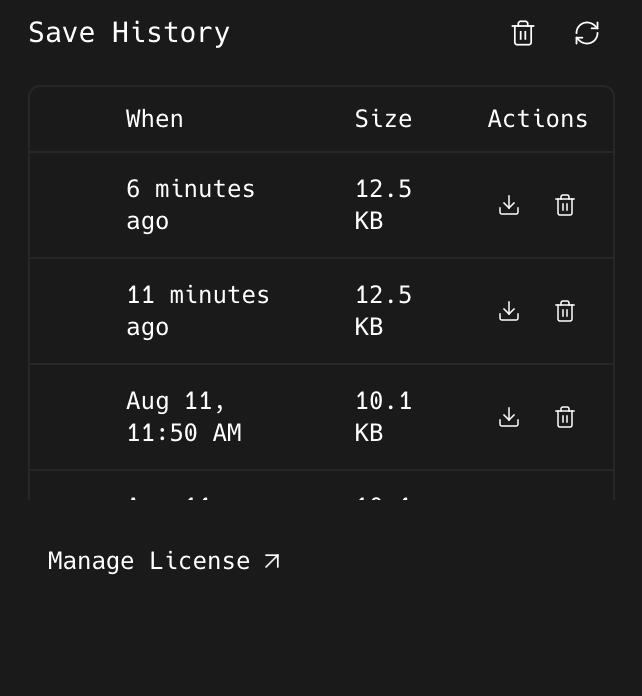
The download icon on a row loads that save back.
Export fails or looks wrong
- 1
Cut the problem down to about five seconds and export that
Set 1080p, 30 FPS, sRGB, audio on. ShotGlass picks Original Safe automatically: there is nothing to configure there.
- 2
If the short test fails, change one setting and retry
One of resolution, frame rate, colour space, audio, or length. One at a time, so you learn which one it is.
- 3
If it succeeds, add your real settings back one at a time
The one that brings the failure back is your culprit.
- 4
Play every export outside ShotGlass
In QuickTime or a browser. A file that previews fine in the editor can still be broken.
Ask for help
- 1
Email jake@shotglass.app with these details
ShotGlass version, macOS version, Mac model, what you were capturing, which devices were on, your export settings, the exact step it fails at, and whether a five-second test reproduces it.
- 2
Strip anything private out first
Before you attach a project or a recording.
Something missing or out of date?