Edit your video
Add video, image, or audio
Bring a file in
- 1
Click Uploads in the left rail, then click Upload
Pick an image, video, or audio file. ShotGlass reads it and adds it to Saved Uploads.
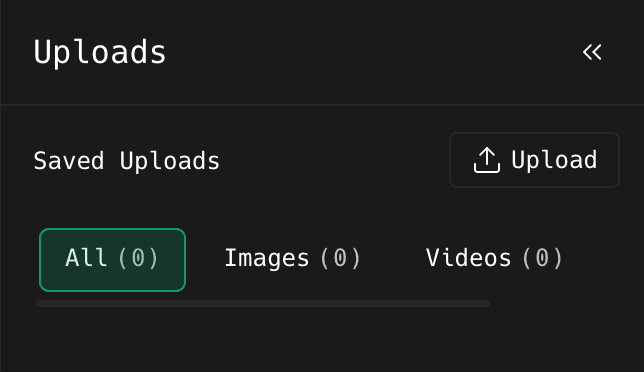
Upload sits beside Saved Uploads. The tabs below it count what you already have. - 2
Use the tabs to filter Saved Uploads by type
Useful once you have a lot in there.
- 3
Drag the playhead where you want it, then click the file and click Add to Timeline
Clicking the file opens a preview first so you can check it is the right one.
You should see: The media appears on the canvas and as a new clip on the timeline.
Adding a video that has sound
- 1
ShotGlass asks: Audio only or Full video
Audio only takes the soundtrack and throws away the picture: good for background music from a video file. Full video brings the picture in with its sound attached.
Edit what you added
- 1
Click the clip on the timeline
Images and videos get crop, position, scale, style, animation, and timing. Audio gets volume and fades.
- 2
Drag the clip's edges to trim it, or the middle to move it
Same as any other clip.
Remove a file from Saved Uploads
- 1
Hover the file in Uploads and click its bin
This takes it out of your media library. Make sure no project still needs it first.
Something missing or out of date?