Edit your video
Record a voiceover
Record narration
- 1
Drag the playhead to where the narration should start
The take is dropped in at exactly this point.
- 2
Click Record in the left rail and pick your microphone
The microphone icon. Check the device menu before you start talking.
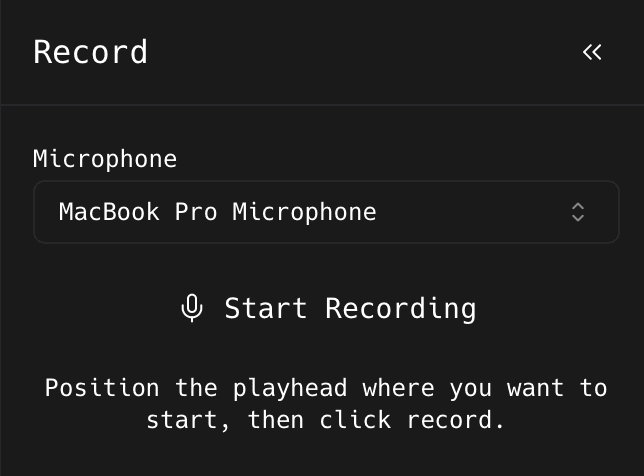
Set the device before you start talking, not after. - 3
Click Start Recording, wait for the countdown, then speak
A level meter moves while you talk. If it does not move, you have the wrong microphone selected.
- 4
Click Stop Recording
You get a preview with playback controls.
You should see: Recording Preview appears with Add to Timeline, Re-record, and Discard.
- 5
Play it back, then click Add to Timeline
Click Re-record to try again, or Discard to throw it away.
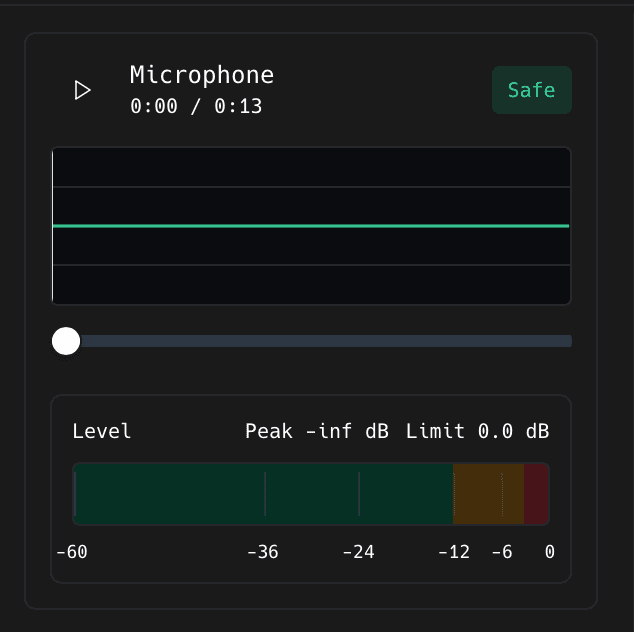
You should see: The voiceover appears as an audio clip at the playhead.
Tidy up the take
- 1
Drag the clip's edges in to cut off silence
The gap before you start talking and the pause after you stop.
- 2
Use the scissors to cut out a fumbled sentence
Split either side of it, click the middle piece, and delete it.
- 3
Play it against the screen recording
Check each sentence lands while the thing you are describing is actually on screen.
Something missing or out of date?