Edit your video
Audio Editing
Open the audio controls
- 1
Click the audio clip on the timeline
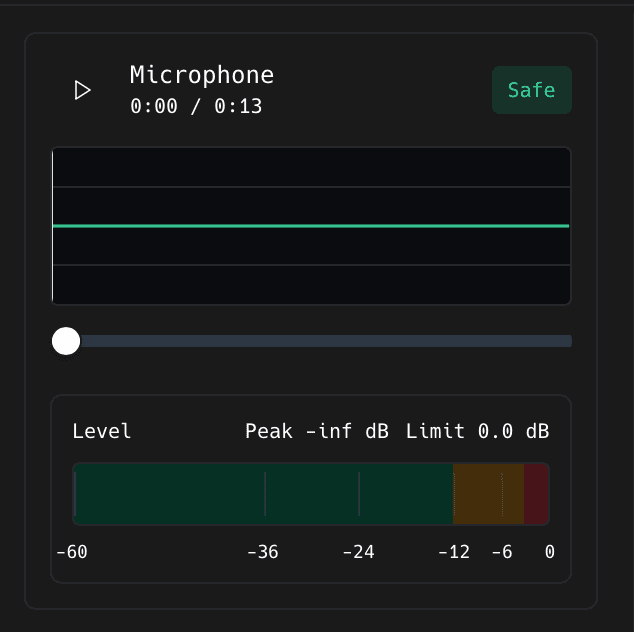
A waveform, a play button, and a level meter appear in the left panel. The meter's Peak reading is the number to watch: keep it out of the red.
- 2
Find one sentence with the problem in it
Click along the waveform to scrub. Come back to that same sentence after every change: it is the only way to hear whether you improved anything.
Set the volume and fade the ends
- 1
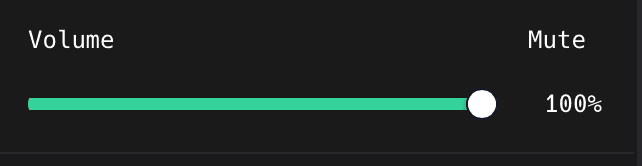
Drag Volume while it plays
0 to 100%. Click Mute to silence the clip completely. Judge the level against the other audio in the project, not on its own.
- 2
Click Advanced and set Fade In and Fade Out
In seconds. Even a short fade kills the click you get at a hard cut.
Clean up a noisy voice recording
- 1
Park the playhead on a representative sentence
ShotGlass builds a short preview around the playhead before it processes the whole clip, so pick a bit that actually has the noise in it.
- 2
Click Clean, listen, then try Heavy
Clean is the normal preset. Heavy adds an extra post-filter for worse recordings. Click Original to hear the untouched source again.
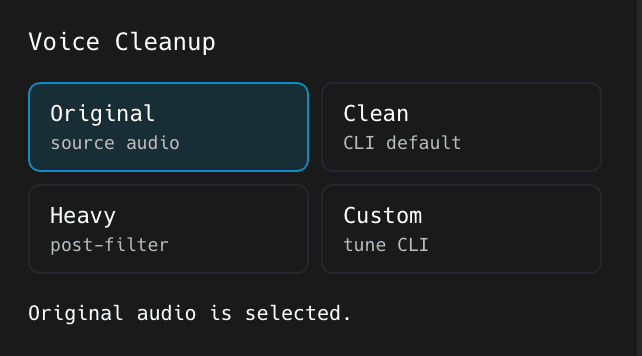
You should see: The line under the four buttons tells you which one is active and when the full clip has finished processing.
- 3
Only use Custom if you know what the parameters do
It exposes Model, Post-filter, Compensate delay, PF beta, Atten dB, Min SNR, ERB max, DF max, and Mask reduce. Set them, then click Apply Custom. Go back to Original if it sounds worse.
Pick a voice style
Each preset is a bundle of tone, dynamics, and filtering. Click one, play your test sentence, and click the next. Original means no styling at all.
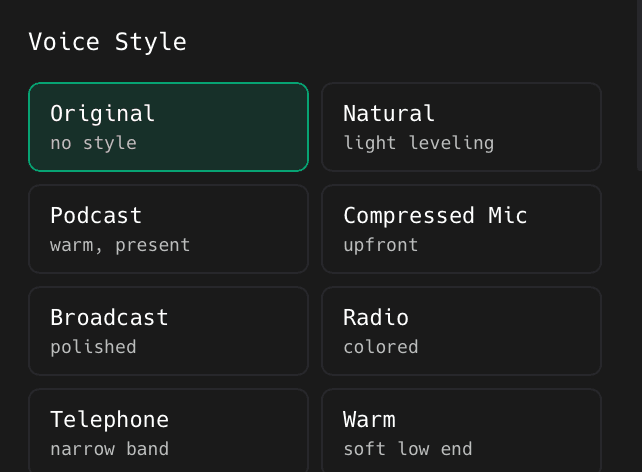
| Preset | Character shown in ShotGlass |
|---|---|
| Original | No style |
| Natural | Light leveling |
| Podcast | Warm and present |
| Compressed Mic | Upfront |
| Broadcast | Polished |
| Radio | Coloured |
| Telephone | Narrow band |
| Warm | Soft low end |
| Warm Studio | Smooth |
| Bright Tutorial | Clear |
| Condenser | Airy |
| Lo-fi Radio | Gritty |
Fix a specific problem by hand
Click Advanced. Touching any of these clears the Voice Style preset name, because the settings are now yours. Change one thing, replay your test sentence, then change the next.
- 1
Set Output Gain last
Once the tone and compression are right. Then set Max Peak so the loudest moment cannot clip.
- 2
Go easy on Drive and Richness
Both change how the voice actually sounds rather than just cleaning it up. A little goes a long way.
| Problem you can hear | Control to reach for |
|---|---|
| Harsh hissing S sounds | De-esser, under Vocal Enhancer |
| Voice sounds thin or boomy | Bass, Presence, and Treble, under Equalizer |
| Too loud then too quiet | Compression, under Dynamics |
| Rumble, hum, or air conditioning | High-Pass Filter, under Noise Removal |
| Hiss between sentences | Noise Gate, under Noise Removal |
| Whole clip too quiet | Output Gain, under Dynamics |
Trim it and check the result
- 1
Drag the clip's edges in to cut silence off the ends
Split either side of a mistake and delete the middle to lose it entirely.
- 2
Drag the clip so the first word lands on the right moment
The narration should start as the thing you are describing appears.
- 3
Play from before the clip to after it
Listen for clipping on the loudest word, background noise you missed, and anything out of sync.
Something missing or out of date?