Capture something
Change recording settings and shortcuts
Change the keyboard shortcuts
- 1
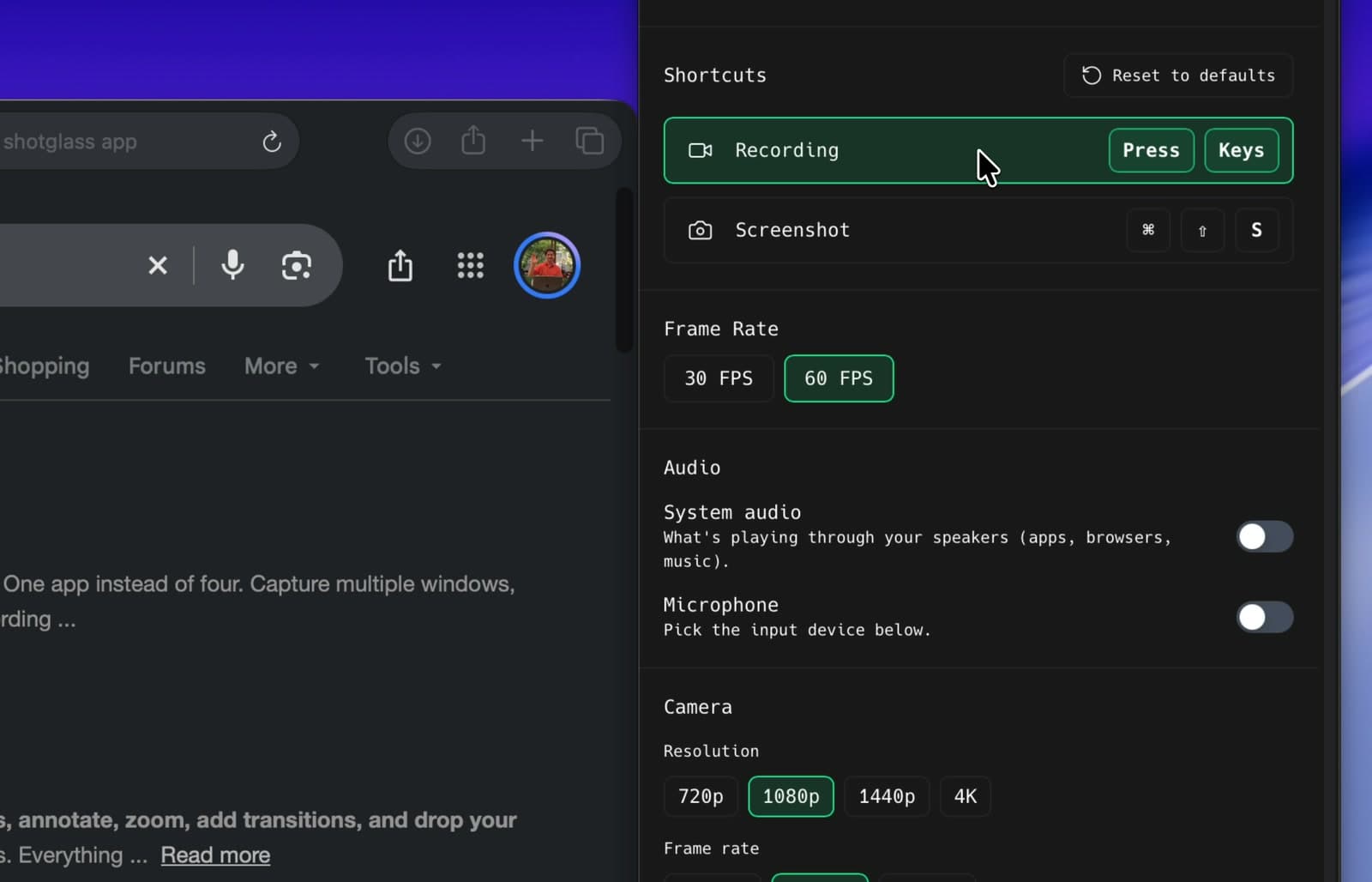
Open Settings and click the Recording shortcut
Press your preferred key combination.
- 2
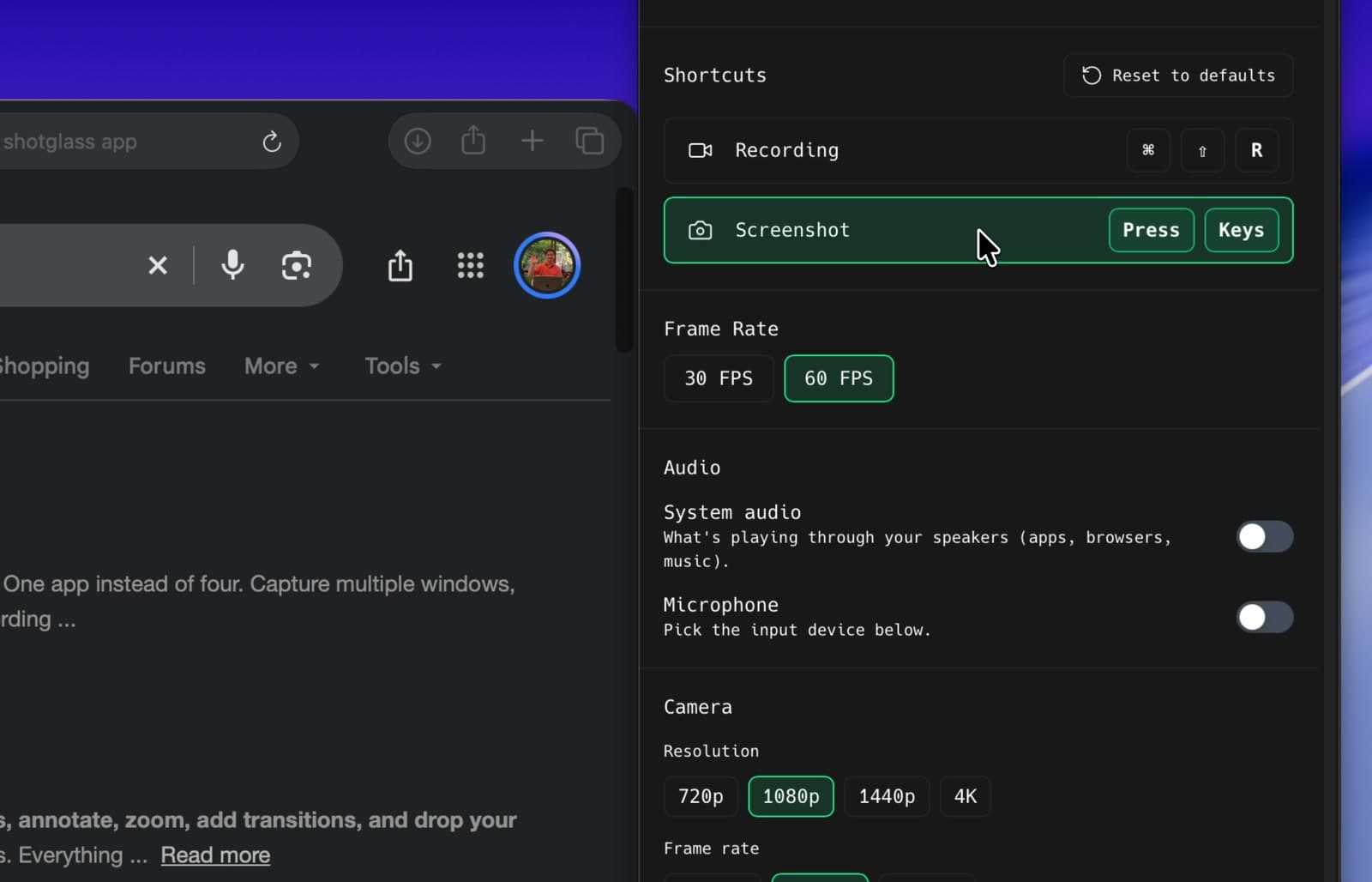
Click Screenshot and press its new shortcut
The two cannot be the same combination.
- 3
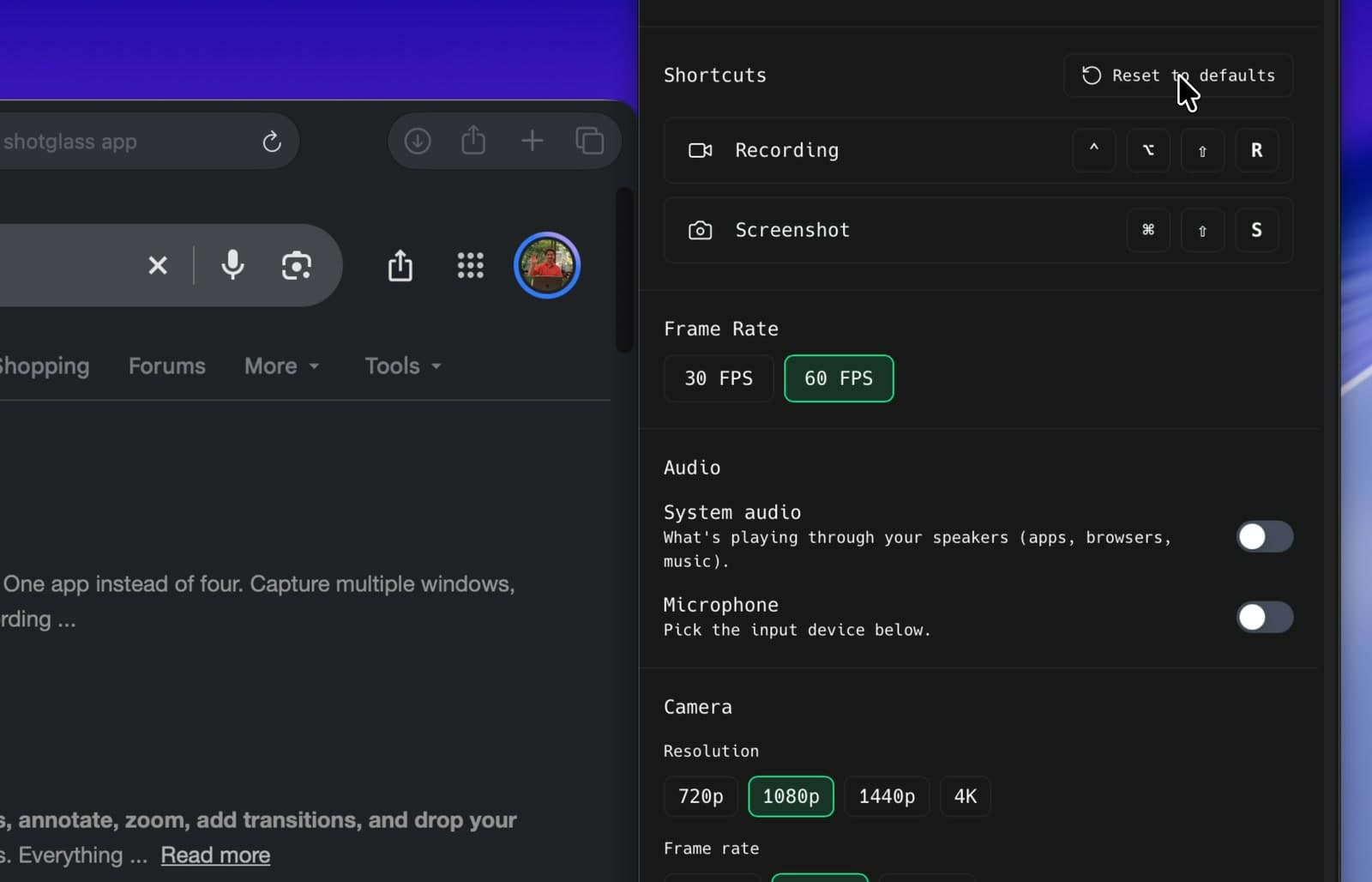
Click Reset to defaults to start over
Restores ⌃⇧R (Control–Shift–R), ⌃⇧S (Control–Shift–S), and the default capture settings.
What each capture setting does
- 1
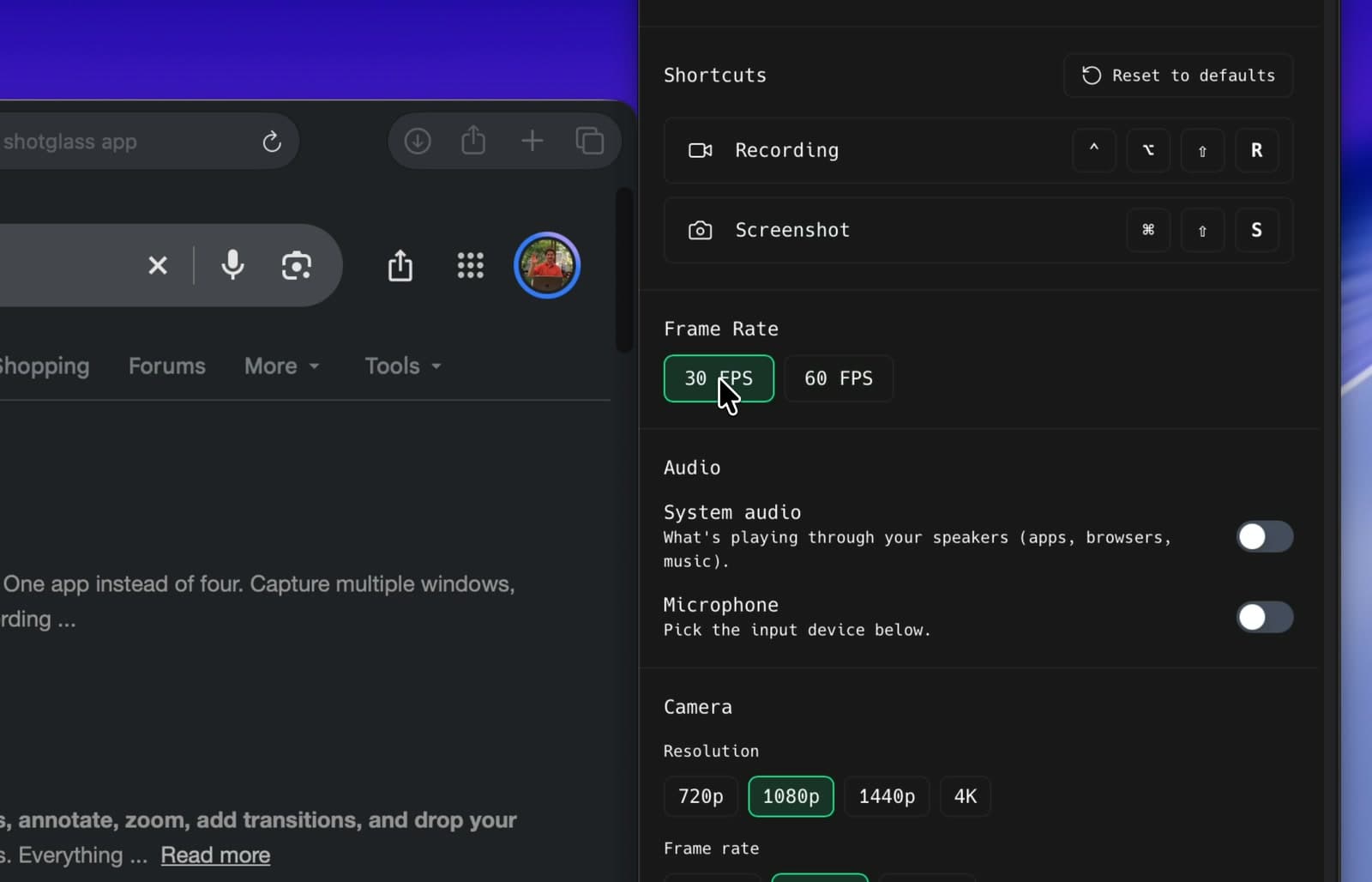
Choose 30 or 60 FPS
Use 60 for smooth cursor movement, or 30 for smaller files.
- 2
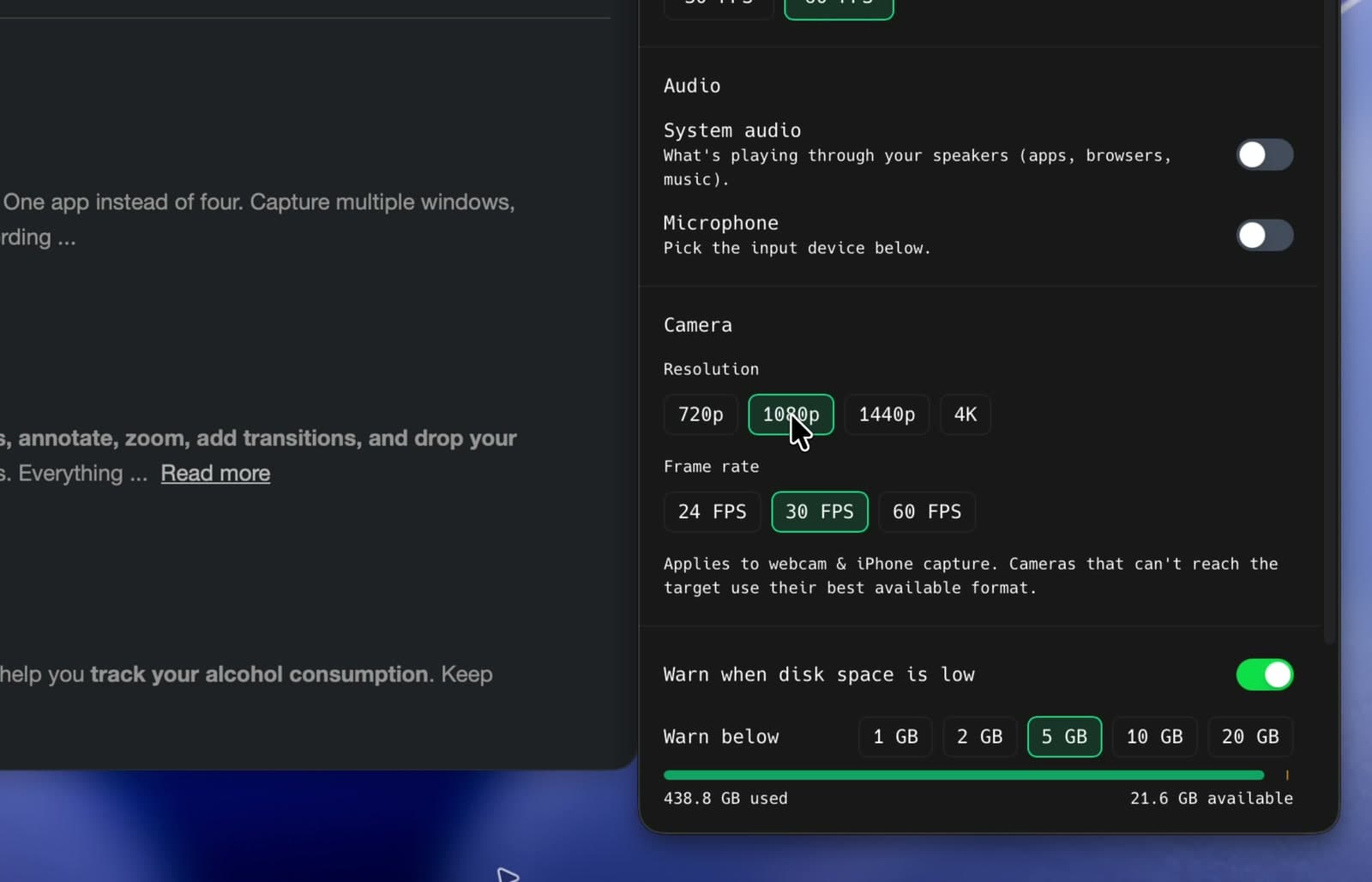
Set camera resolution and frame rate
These settings apply to webcam and iPhone capture. ShotGlass uses the closest supported format.
- 3
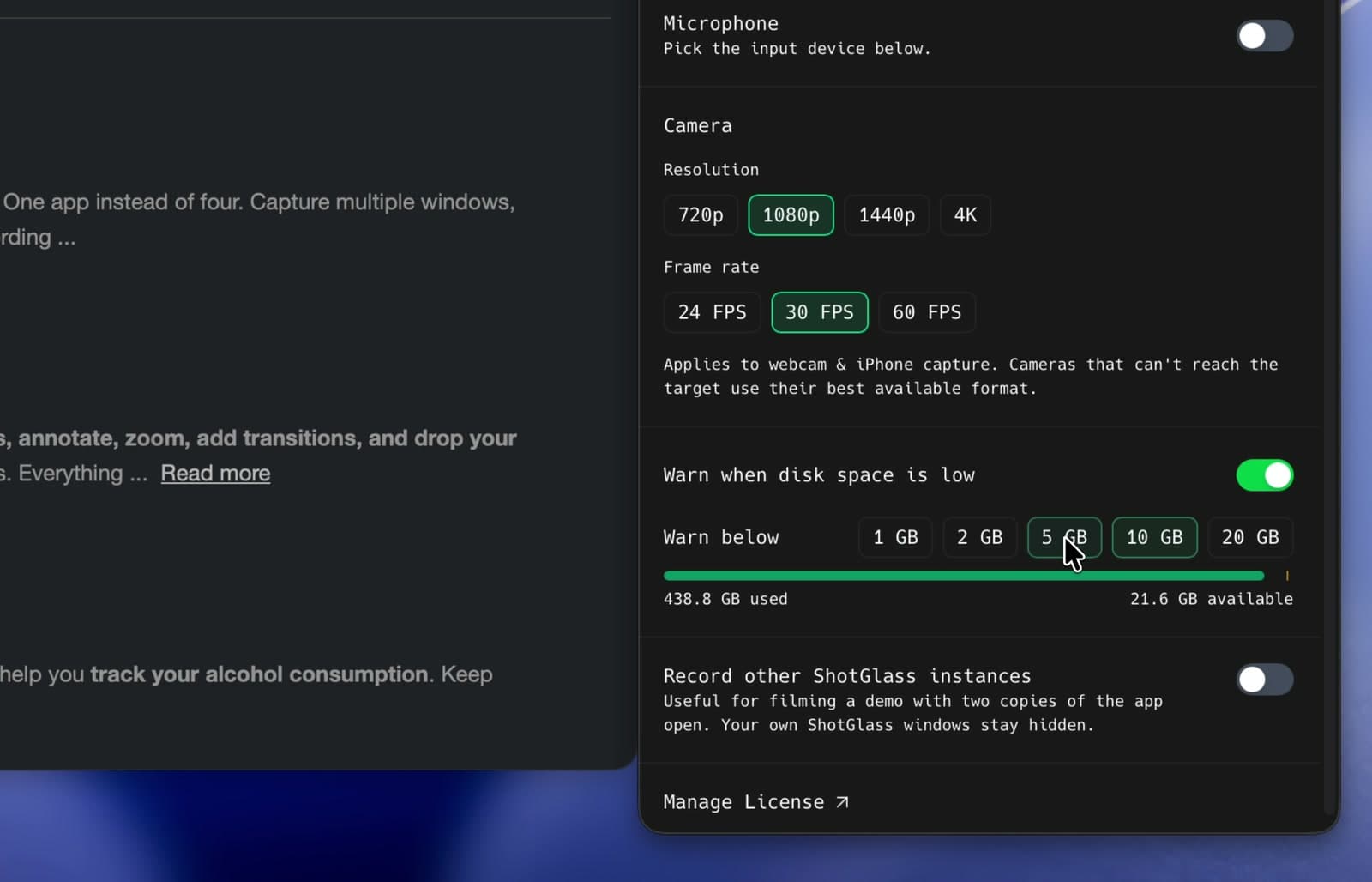
Choose when to warn about low disk space
Switch on the warning and pick a free-space threshold.
| Setting | What it does |
|---|---|
| Frame Rate | 30 or 60 FPS. Use 60 for smooth cursor movement, 30 for smaller files |
| System Audio | Records the sound your apps make |
| Microphone | Records the mic you pick, with a live level meter |
| Camera | Adds a webcam. 720p–4K, at 24, 30, or 60 FPS |
| Low disk warning | Warns you below 1, 2, 5, 10, or 20 GB free |
Record ShotGlass itself
- 1
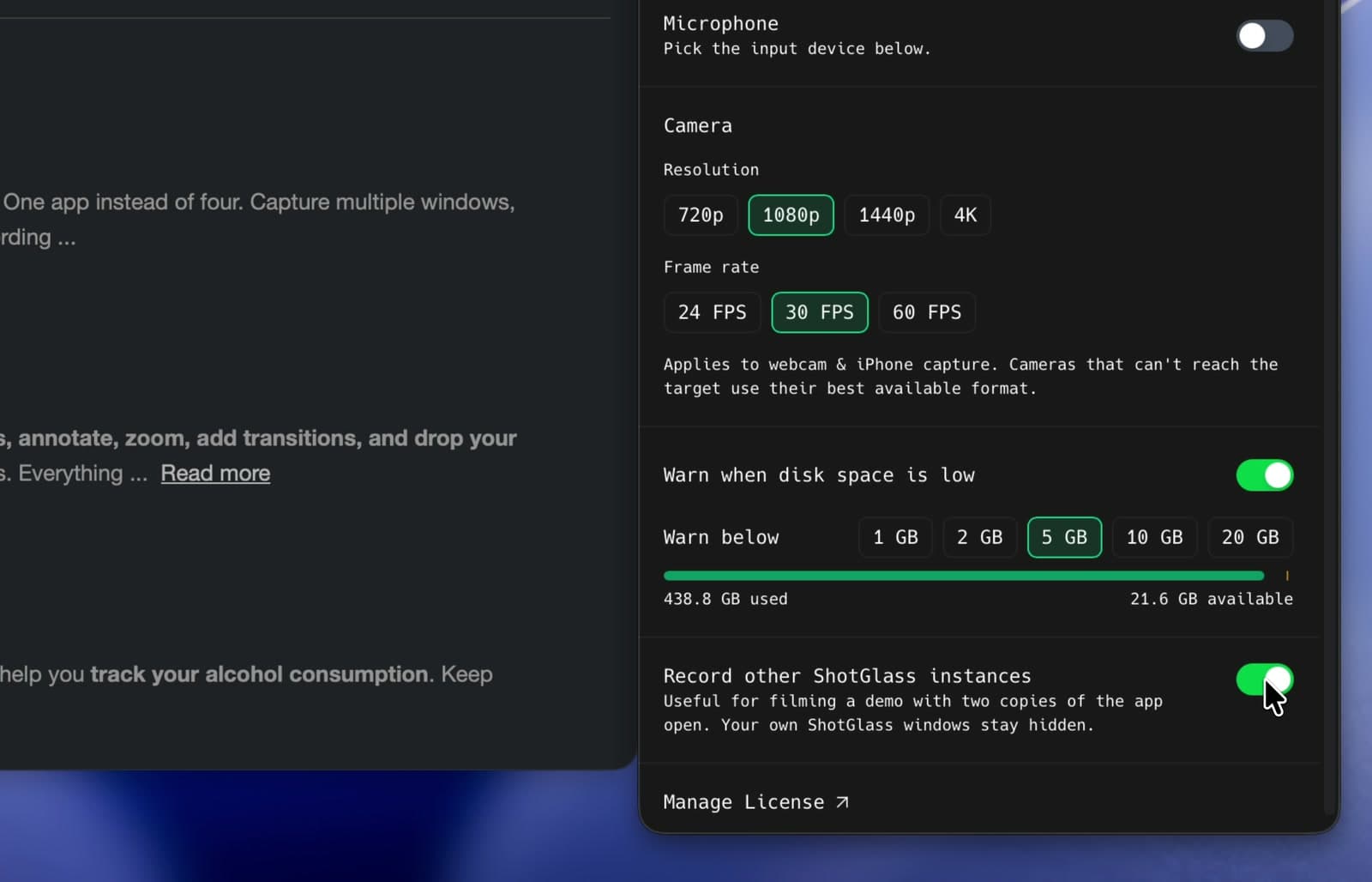
Switch on Record other ShotGlass instances
Use this when filming another ShotGlass instance for a tutorial.
Manage your license
- 1
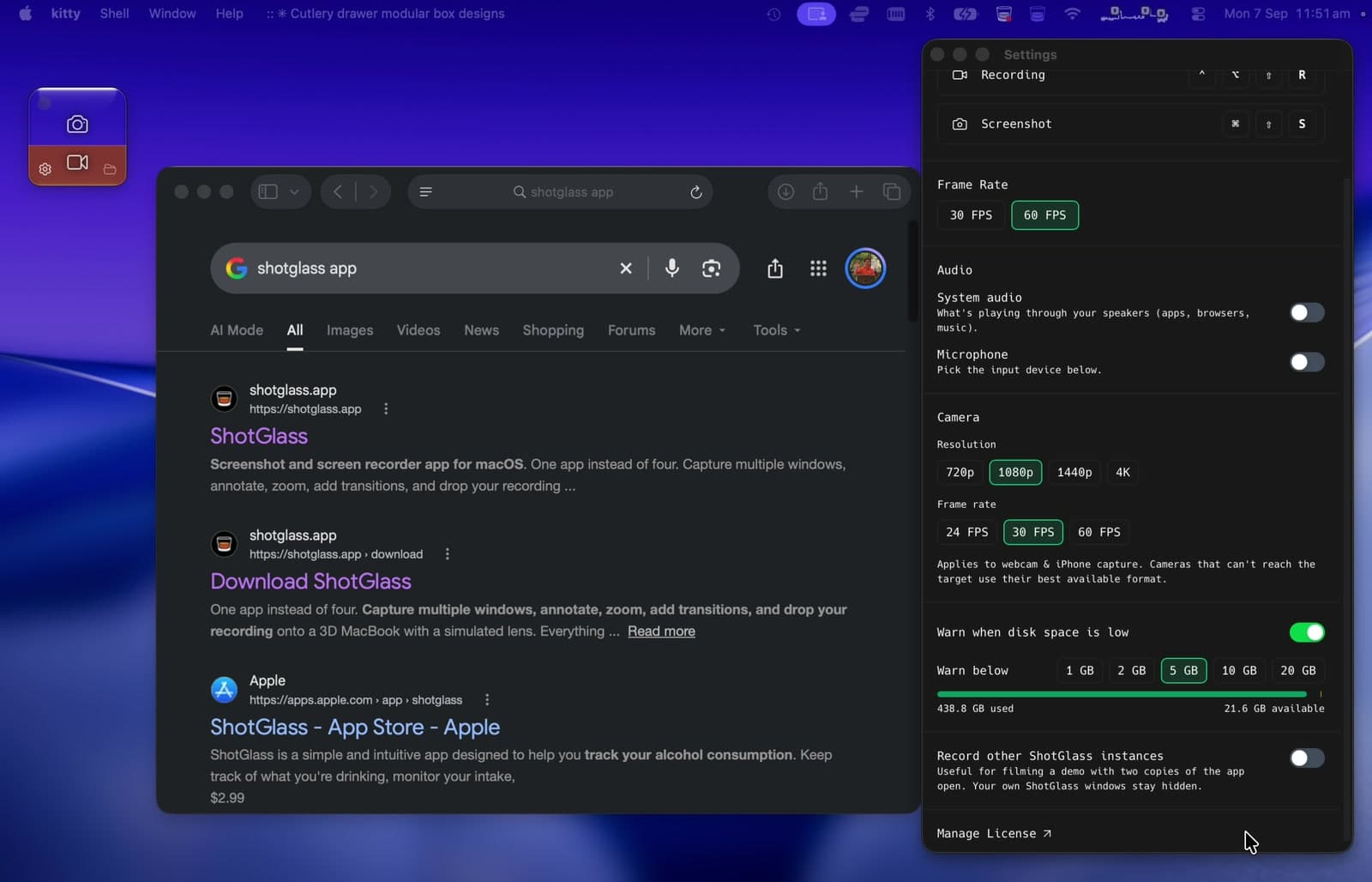
Click Manage License
Opens your license portal in a browser.
Something missing or out of date?