Edit your video
Change the background and window style
Pick the shape of the video
- 1
Click the ratio button above the timeline
It shows the current shape, such as 16:9. Seven choices: 16:9 widescreen, 4:3 classic, 9:16 vertical, 1:1 square, 4:5 portrait, Original at the source size, and Custom. Do this first: it changes how much room you have for everything else.

It sits just right of the Video menu, above the timeline.
Add space around the capture
- 1
Click Background: the paint palette, top of the left rail
The Background panel opens on the left.
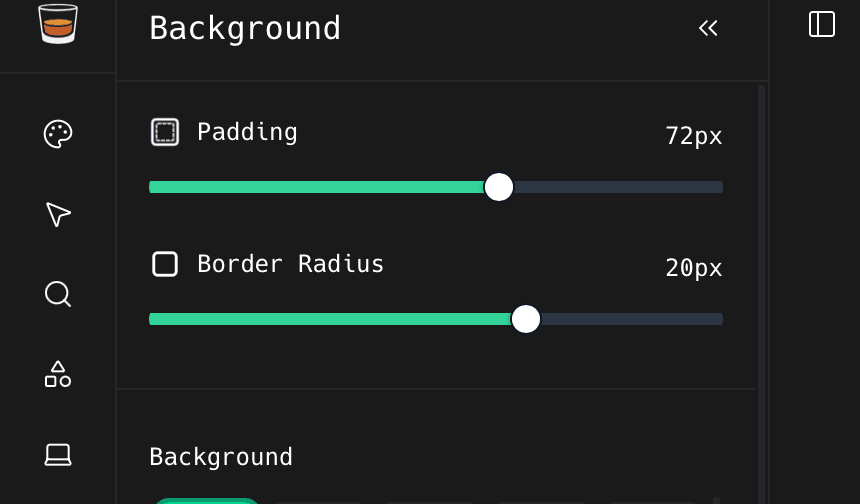
The palette is the first icon under the logo. Its panel opens immediately to the right. - 2
Drag Padding to push the capture away from the edges
Drag right for more background and a smaller capture. Drag left to fill the frame.
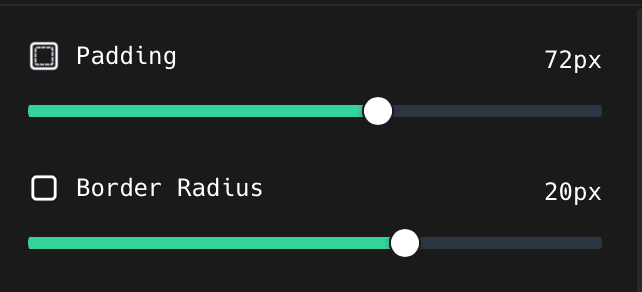
Padding and Border Radius are the first two sliders in the panel. - 3
Drag Border Radius to round the corners
Match the app you recorded. Around 20px looks right for most macOS windows.
Pick a background
- 1
Click any thumbnail in the Background grid
The canvas updates as soon as you click. The selected one gets a green outline.
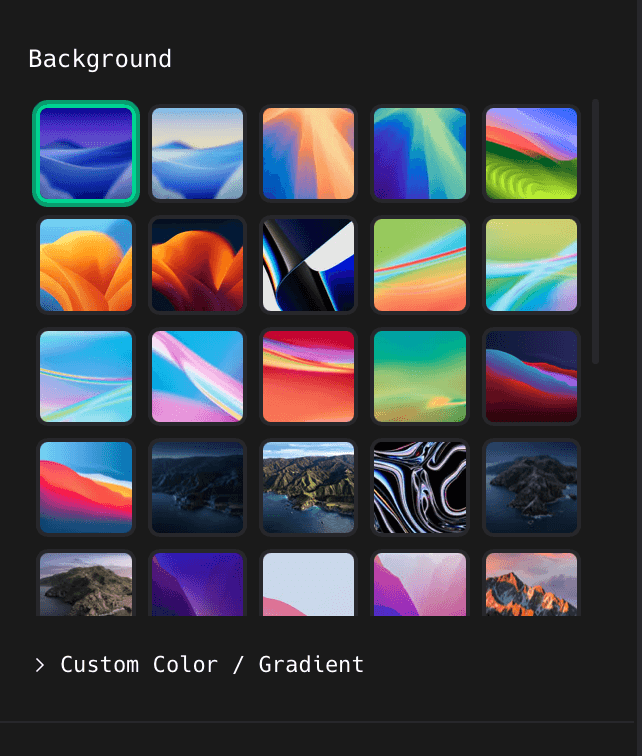
Scroll the grid for more. Click Custom Color / Gradient underneath it for your own colours. - 2
Click Custom Color / Gradient for your own colour
This opens the colour and gradient controls under the grid. Set one colour for a flat background, or two for a gradient.
Add a shadow
- 1
Click None, Subtle, or macOS
Subtle is a light drop shadow. macOS matches the shadow a real macOS window casts.
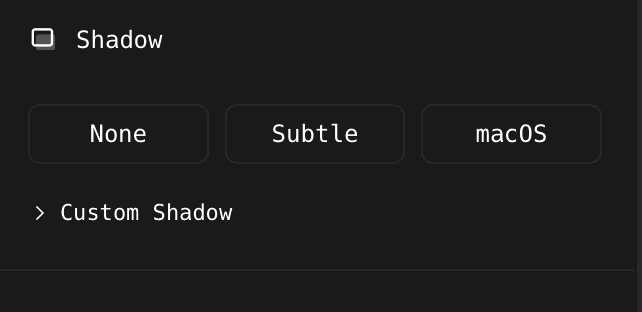
Click Custom Shadow below the presets to set blur, spread, offset, and colour yourself.
Speed it up, and cut off the window chrome
- 1
Scroll to the bottom of the Background panel
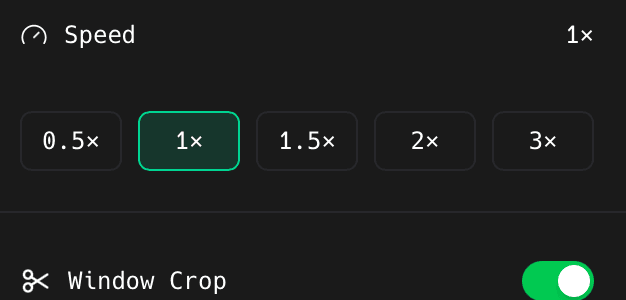
Two more controls live down here that are easy to miss.
- 2
Click a Speed to play the whole recording faster
0.5× to 3×. Useful for cutting dead time out of a long demo without editing anything. It applies to the project, not one clip.
- 3
Turn on Window Crop to trim the title bar
This removes the window chrome ShotGlass detected around your capture.
- 4
Check nothing you need was cut
Play through the parts where menus or toolbars open. If something you need disappeared, turn Window Crop back off.
Something missing or out of date?