Recover a save
Save and restore a project
Save a checkpoint before a big change
- 1
Click the disk icon in the editor header
Do this before you restructure the timeline, set up a 3D scene, or export. Wait for the save status to finish before you carry on.
You should see: A pinned entry appears at the top of Settings › Save History.
What autosave does on its own
- 1
ShotGlass saves as you work: you do not have to do anything
The header shows the current save status. Every autosave shows up in Save History with a time and a size.
- 2
Your manual saves have a pin on them
That is how you tell them apart, and why clearing autosaves does not touch them.
Go back to an earlier version
- 1
Click the gear at the bottom of the rail and scroll to Save History
Find the entry from before you broke it, using the times in the When column.
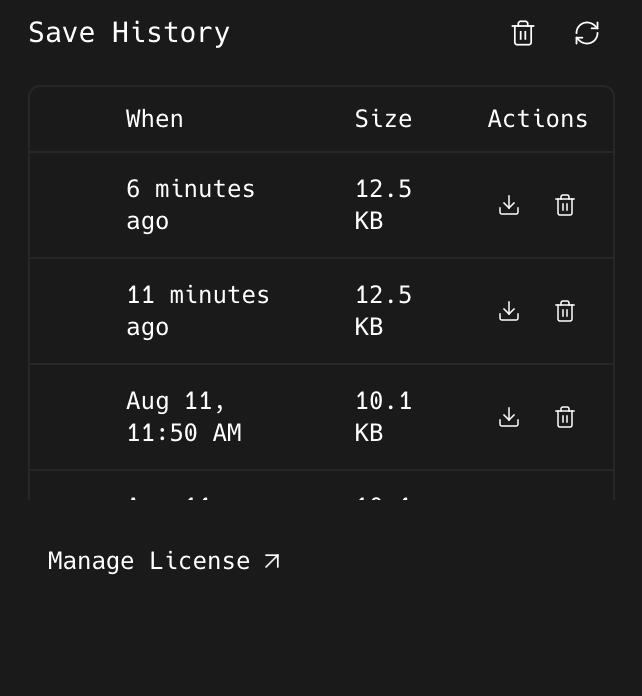
The download icon loads that save back. The bin deletes just that entry. - 2
Click Load this save
The canvas, timeline, and settings all go back to that point.
- 3
Check it is the right one, then save again manually
Look at the timeline clips, the canvas layout, the audio, and any 3D scene before you carry on working.
Clear out old saves
- 1
Click the bin on one row to delete just that save
The bin in the Save History header clears all the autosaves at once and leaves your pinned manual saves alone.
Something missing or out of date?