QuickTime vs ShotGlass for Mac Screen Recording
Compare QuickTime's free raw Mac recording with ShotGlass's capture, editing, automatic zoom, and 3D workflow.

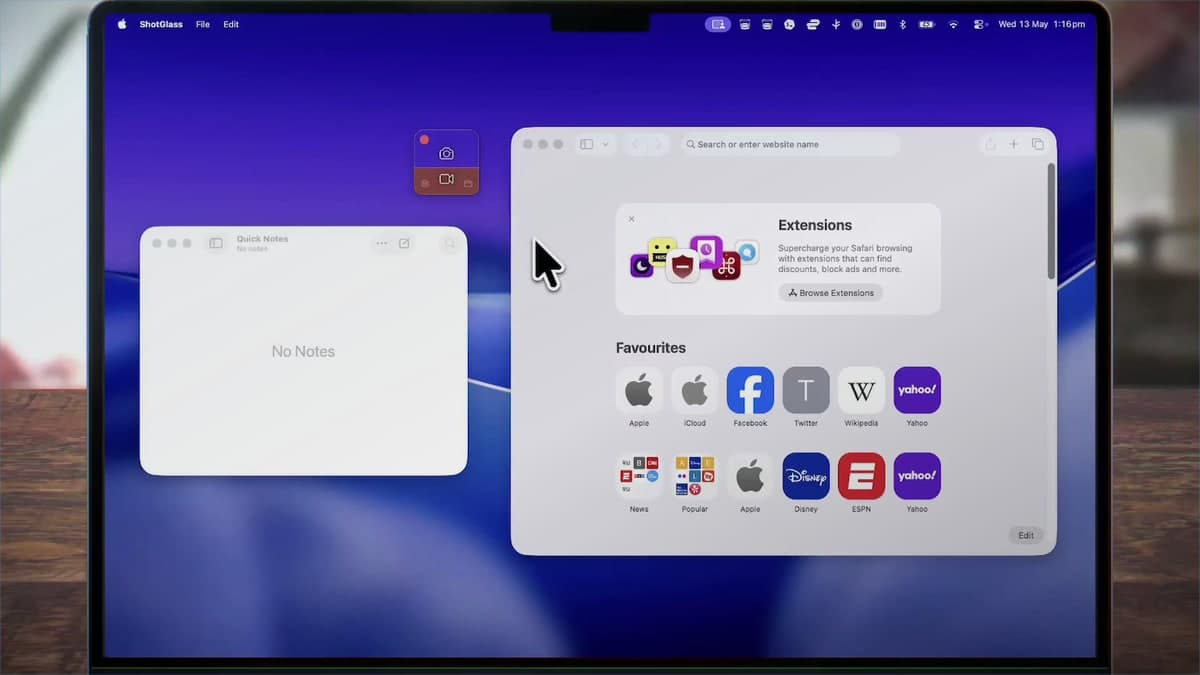
QuickTime is already installed, reliable, and sufficient for many internal recordings. Starting there is sensible when the final deliverable is the raw screen with a little trimming.
ShotGlass addresses the work that begins after capture: directing attention, combining sources, improving presentation, and exporting a finished asset without sending the project through several specialised apps.
Start with the finished file you need
Define the final output
If the goal is evidence for one colleague, QuickTime may be enough. If the result is public marketing, onboarding, or education, list the editing and presentation work it needs.
Choose the simplest capture
Use QuickTime for a whole-screen or selected-area recording with microphone audio. Use ShotGlass for window-aware, multi-source, system-audio, microphone, and camera capture.
Estimate the edit
QuickTime handles basic trimming. ShotGlass adds cuts, zoom, cursor rendering, annotations, transitions, backgrounds, camera composition, and voiceover.
Consider the presentation
A raw capture preserves the desktop. ShotGlass can compose a designed canvas or move the recording onto a 3D MacBook scene.
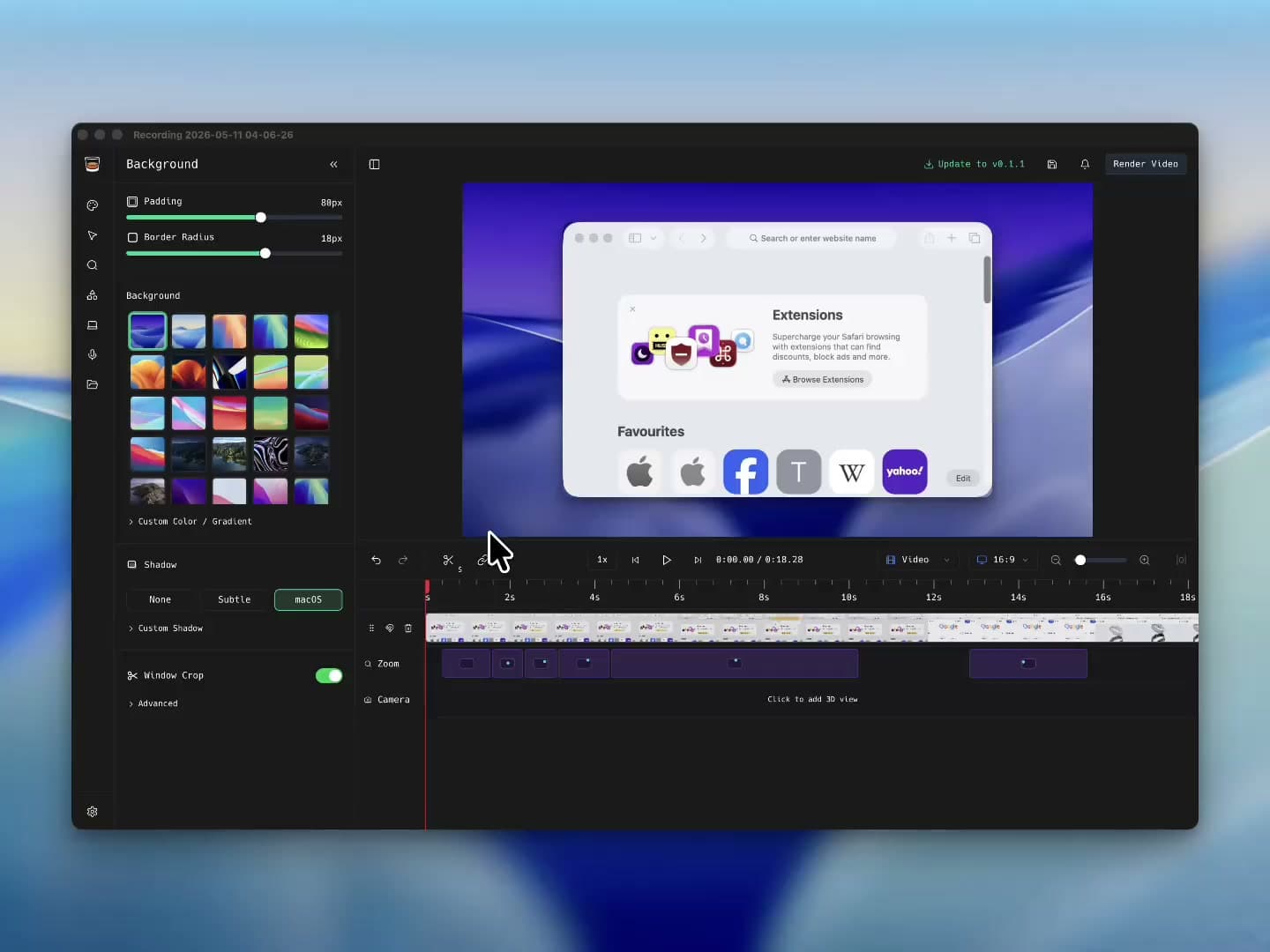
Test the same short task
Make one representative workflow in both tools and count the time and extra apps required to reach the publishable result.
QuickTime and ShotGlass compared
QuickTime is a capture utility; ShotGlass is a capture-and-presentation workflow. The deciding question is whether the recording is already finished when capture stops.
| Capability | QuickTime / Screenshot | ShotGlass |
|---|---|---|
| Price to record | Included with macOS | Free to try; purchase for video export |
| Whole screen / selected area | Yes | Yes |
| Selected window | On supported macOS versions | Yes, with window-aware selection |
| System audio and microphone | Apple documents microphone capture | Independent system-audio and mic controls |
| Editing | Basic trim and movie operations | Cut, zoom, cursor, annotation, camera, backgrounds, and 3D |
| Multiple window sources | Flattened into the capture | Selectable and editable in the project |
| Video container | MOV by default | MP4 export |
Use QuickTime for temporary evidence
A raw internal clip, reproduction step, or async update rarely needs a full presentation workflow.
Use ShotGlass for repeatable publishing
Backgrounds, zoom behaviour, cursor treatment, and export controls matter more when recordings are part of a public documentation or launch system.
Include the extra-app cost
Compare the time and software required to reach the final deliverable, not only the time it takes to press Record.
Before you call it finished
- Buying a full editor for a one-off raw clip that QuickTime already handles well.
- Choosing QuickTime for a public demo, then rebuilding zoom, cursor, background, and device effects elsewhere.
- Comparing capture controls without comparing the final publishable file.
Questions that come up
Is ShotGlass a replacement for QuickTime?
It can replace QuickTime for capture, but its main value is the integrated editing and presentation workflow after capture.
Can QuickTime record microphone audio?
Yes. Apple's current instructions include microphone selection in the Screenshot and recording controls.
Can I try ShotGlass before buying?
Yes. Every feature can be tried before purchase; a licence is required when you export video.
Sources checked for this guide
Try the same workflow in ShotGlass
You can use every feature before paying. A license is only needed when you export video.